October 31, 2026
Introducing Task Timeline: See Your Whole Project, Move It in Seconds

Part of our 31 Customer Improvements series, where we ship one feature our customers asked for every day this month.
Every client project has a plan. The trouble is that it usually lives in five places at once: a task list, a kickoff deck, a spreadsheet someone built in week one, and the project lead's head.
A list tells you what needs to happen. It doesn't show you when, or what happens to everything else when one date moves. That's how client work slips. The client is two days late on their data export, and nobody notices it quietly pushes testing, training, and go-live. Your lead consultant is booked on three overlapping tasks the same week, and nobody notices until that week arrives.
You can't manage what you can't see. Today we're making the whole project visible.
Meet Task Timeline
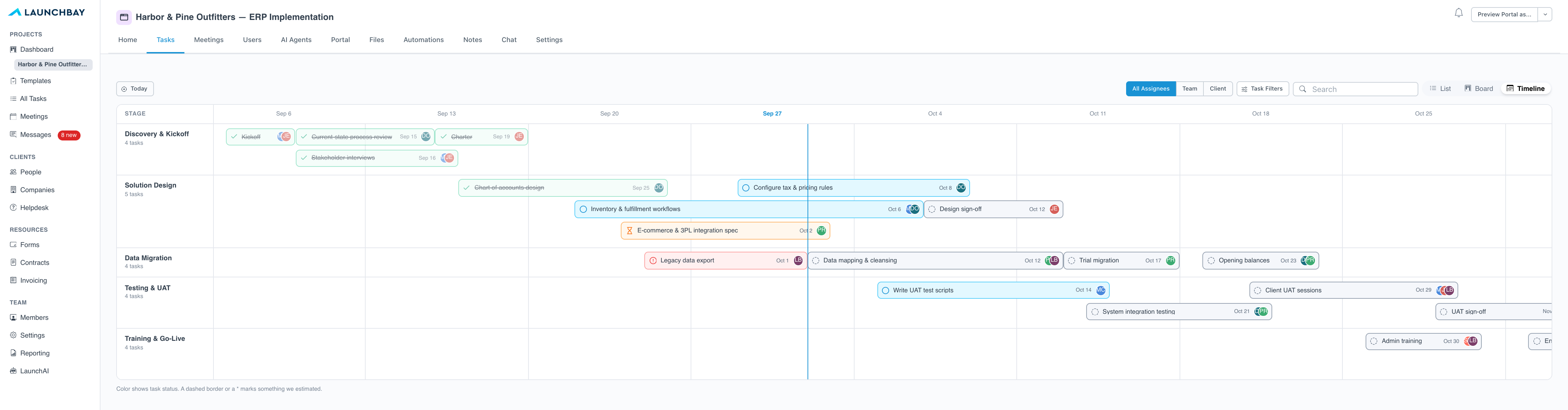
Task Timeline lays out every task in your project on a horizontal calendar, grouped by stage, like a Gantt chart built into your project. Each task is a bar showing when it starts, how long it runs, and when it's due. It sits next to List and Board in your project's Tasks tab, so there's nothing to set up.
It isn't just a picture of your plan. It is your plan, and you change it by dragging:
- Move a task. Slide a bar to a new week. Its start and due dates shift together, and its length stays the same.
- Change the due date. Drag the right end of a bar to make the task longer or shorter.
- Change the start date. Drag the left end to start work earlier or later while the due date stays put.
- Let dependencies follow. Push a task later, and the tasks that depend on it move with it.
Every change saves the moment you let go. Click any bar to open the full task, with its comments, files, and forms.
Why it helps
Plan in minutes, not meetings. Build the schedule by dragging bars into place instead of typing dates into fifty task modals. Laying out a twelve-week rollout or a client onboarding plan becomes a ten-minute exercise you can do live with the client on a call.
See who's overloaded before it hurts. Every bar shows who it's assigned to, so overlapping work on the same person is easy to spot and rebalance while there's still time.
Know where you stand today. A blue line marks today across the whole project, and bars are colored by status, so you can see right away what's done, in progress, or late.
Absorb delays without the scramble. When a client deliverable slips, drag it and let the dependent tasks follow. The plan stays honest without a spreadsheet rebuild.
Know what's committed and what's estimated. Not every task has dates yet. Timeline estimates the missing ones from your stage history and task details, and marks them with a dashed border.
See automations coming. Tasks driven by an automation carry a small lightning bolt, so nobody is surprised when work kicks off on its own.
A day in the life: an ERP rollout
Picture an implementation partner running a twelve-week ERP rollout for a retail client, the kind of client implementation where one late deliverable ripples through everything. The project has five stages: Discovery & Kickoff, Solution Design, Data Migration, Testing & UAT, and Training & Go-Live.
Open Timeline, and the whole engagement fits on one screen. Discovery is wrapped up and faded out. Solution Design is in progress under today's line. Data Migration is lined up behind it, waiting on the client's legacy export.
Then the client calls: their export will be a week late. In a list view, that's an afternoon of re-dating tasks and a tense email. In Timeline, the project lead drags the export task one week to the right, and data mapping, the test migration, and UAT move with it. The go-live date updates where everyone can see it, and the conversation shifts from "what happened?" to "here's the new plan."
It works the other way, too. If Solution Design finishes early, drag the next stage forward and bank the extra time.
Get started
Task Timeline is available now in every LaunchBay project.
- Open any project and go to Tasks.
- Switch the view from List or Board to Timeline.
- Drag a bar to move it, or drag either end to change its dates.
Your stages, tasks, assignees, and statuses are already there, so there's nothing to import or configure.