


Run client work from Claude, ChatGPT & more.
LaunchBay's MCP connector lets you check project status, remind clients, and create work by asking your AI. Take on more clients without adding to your team.
Works with the AI tools you already use:



Deliver like a bigger team, without hiring one.
Your AI assistant takes on the admin behind every client: status checks, setup, follow-ups, and reminders. Your team spends its time on the work clients pay for.
Your white-label client portal, set up for you
Every project your AI creates comes with a branded client portal. Clients get your logo, colors, and custom portal pages, with no login required.
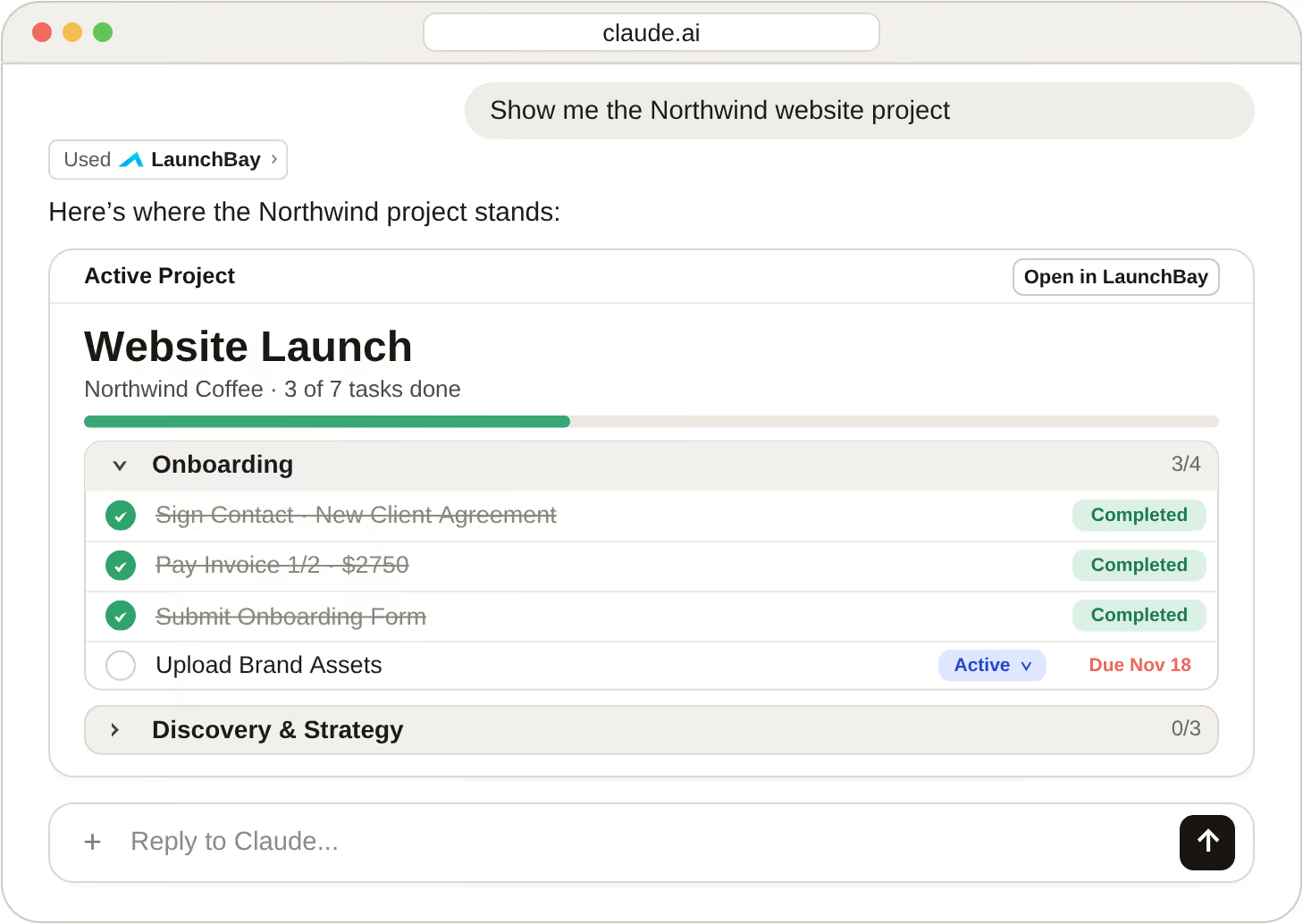
Live projects, right in the chat
In Claude, projects, tasks, and forms appear as live views. Review, update, and respond on the spot, without opening another tab.
40+ tools, one assistant
Spin up projects from templates, build forms, edit automations, and remind clients just by asking, without adding to your team's workload.
More clients, more revenue, less busywork.
One request replaces the clicking, chasing, and copying behind every client project.
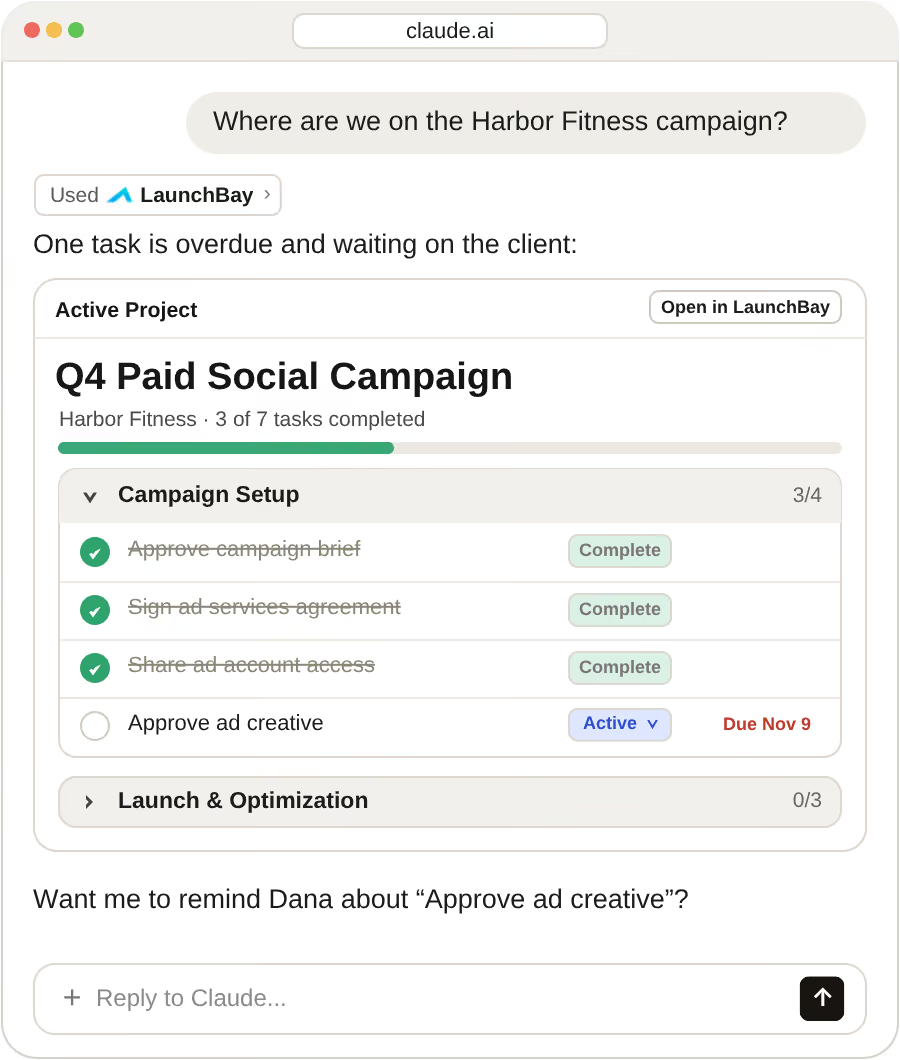
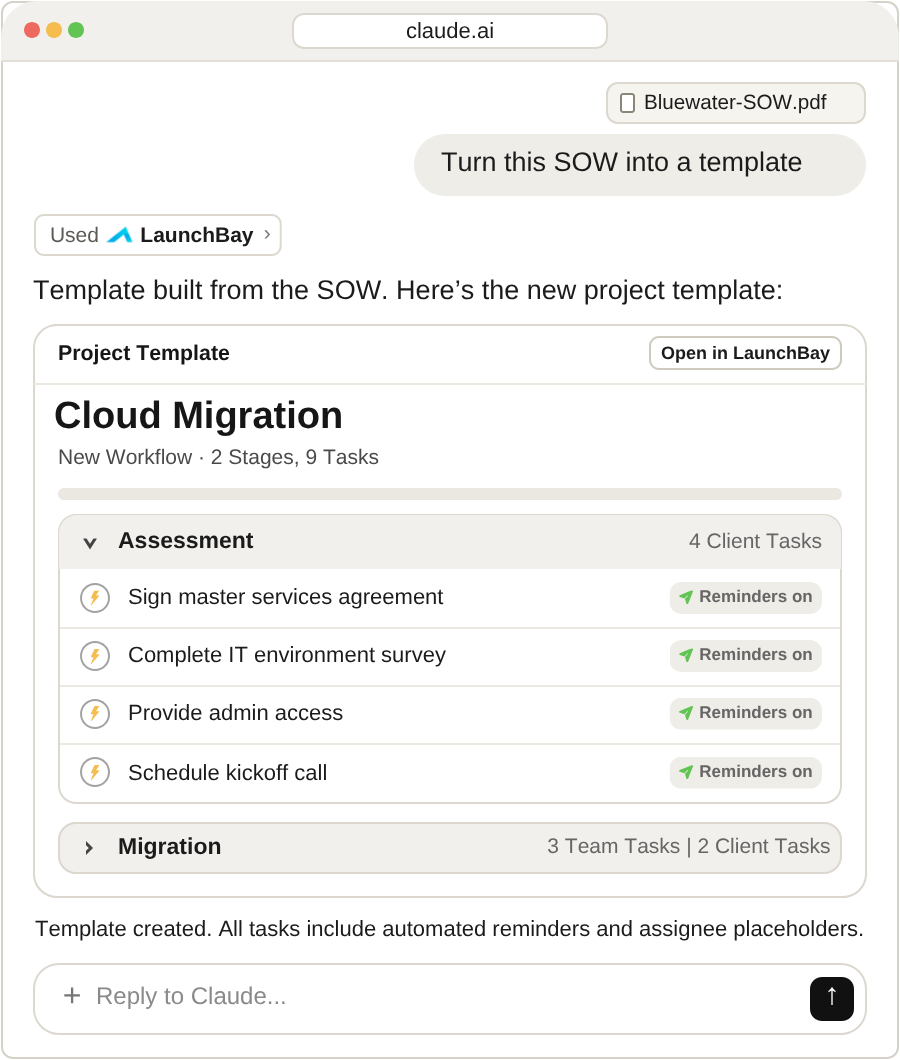
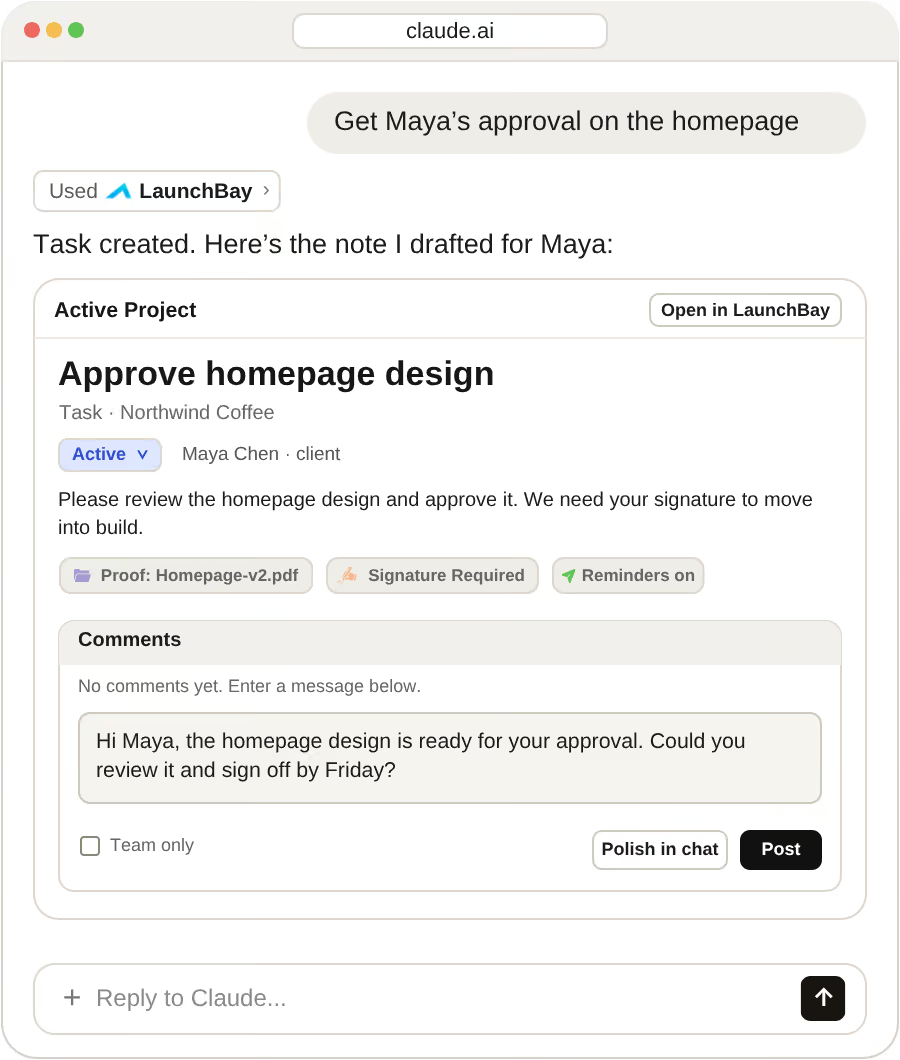
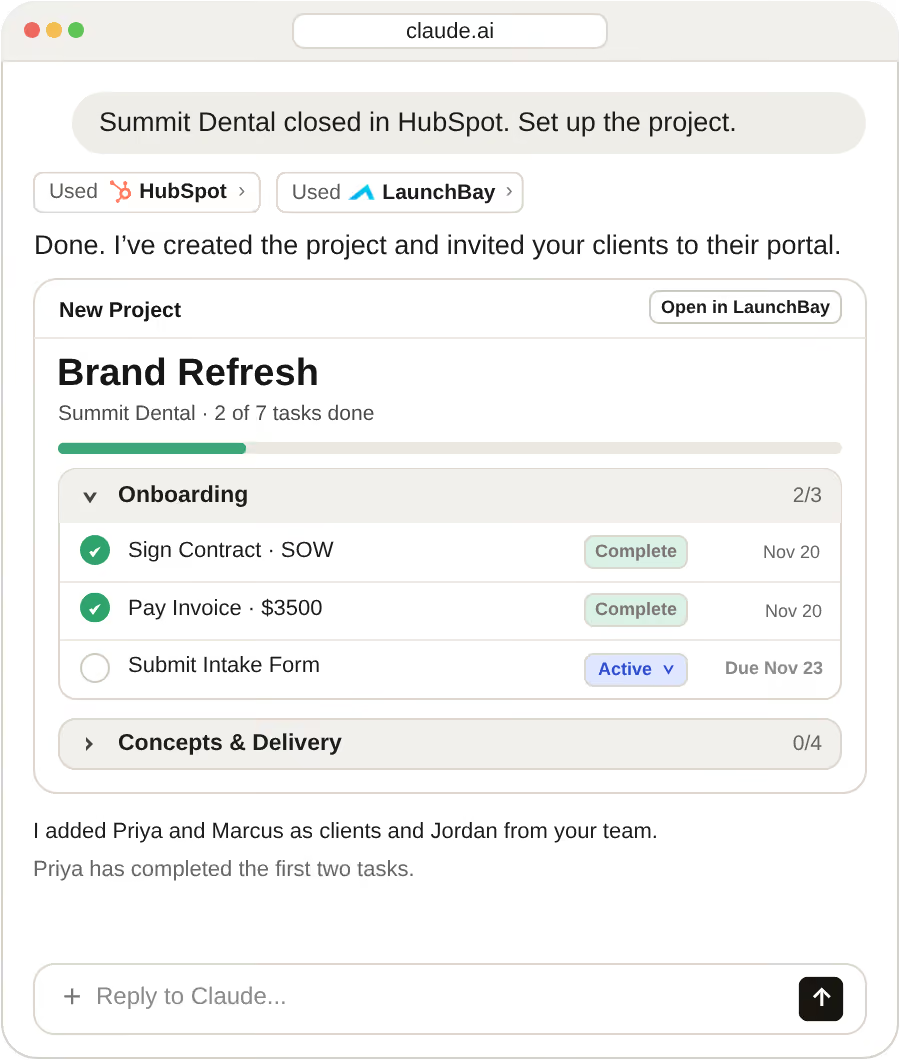
Everything you do in LaunchBay, executed by AI.
See every project at a glance
Status reports, health scores, recent activity, and overdue tasks across every client, all in one answer.
Turn your docs into playbooks
Hand your AI a doc or spreadsheet and get a reusable template with stages, tasks, and intake forms built in. Add automations by describing them.
Keep clients moving
Send portal invites, build intake forms, and draft reminders you approve, so nothing stalls waiting on a client.
Start running client work from your AI today.
Connect LaunchBay to Claude, ChatGPT, Perplexity, Gemini, or any MCP-compatible AI tool. Check project status, remind clients, and create projects without leaving the chat.
LaunchBay MCP connector FAQs
Everything you need to know about the LaunchBay MCP connector.
What is MCP?
MCP stands for Model Context Protocol. It's an open standard that lets AI assistants like Claude and ChatGPT connect to other tools and take action in them. LaunchBay's MCP connector gives your AI assistant direct access to your LaunchBay account, so it can find projects, create work, and send client reminders.
How do I connect LaunchBay to Claude or ChatGPT?
Add LaunchBay as a custom connector in your AI tool using the server URL https://app.launchbay.com/mcp/launchbay, then sign in with your LaunchBay account to authorize the connection.
Which AI tools work with LaunchBay?
LaunchBay works with Claude, ChatGPT, Perplexity, Grok, Cursor, Viktor, Microsoft Copilot, Google Gemini, and other MCP-compatible tools. Add LaunchBay as a custom connector with one server URL and sign in with your LaunchBay account.
Which LaunchBay plans include the MCP connector?
The MCP connector is available on LaunchBay Premium plans. Want to try it during your free trial? Sign up, then email hello@launchbay.com and we'll turn it on for you.
Does the MCP connector cost extra?
No. LaunchBay doesn't charge extra for the connector. You only pay for the AI tool you already use, and most AI tools require a paid plan to add custom connectors.
Do my clients need an AI tool?
No. Your clients use your white-label client portal through a one-click link, with no login and no AI tool required. You and your team run the work from your AI assistant, and clients complete their tasks in the portal.
What is an AI client portal?
An AI client portal pairs a white-label client portal with AI that handles the work behind it. With LaunchBay, clients use your branded, no-login portal while your AI assistant creates projects, drafts reminders you approve, and checks status through the MCP connector. Every project created from a template comes with its portal pages and tasks ready to go.
What can I ask my AI assistant to do?
You can ask it to pull status reports, find overdue tasks, check project health scores, send reminders to clients, create tasks and projects from templates, build forms, and update statuses and due dates.
What can the AI access in my LaunchBay account?
Your AI assistant signs in through your own LaunchBay account using OAuth, so it works within your permissions. For example, only team members who can edit templates can edit them through an AI assistant. It can work with the projects, tasks, templates, automations, clients, forms, and meetings that the connector's tools cover. Your clients never need to connect an AI tool.
Does the AI send anything to my clients without my approval?
No. LaunchBay never sends anything to your clients without your approval. Your AI assistant only acts when you ask it to, and client emails like nudges need your confirmation before they send. The one exception is an automation you set up on purpose, which runs the way you configured it. If something is unclear, your assistant asks before it builds anything.