.svg)
October 8, 2026
Kick off stages automatically with Import stage
.png)
Part of our 31 Customer Improvements series, where we ship one feature our customers asked for every day this month.
Import stage automations can now start the stage they bring in, so the next phase of a project kicks off the moment the last one wraps up.
Until now, an imported stage always landed in draft. The automation did the copying, but someone on your team still had to notice the new stage, open it, and activate the first task by hand. That small gap is where client implementations stall and clients end up waiting.
What's new
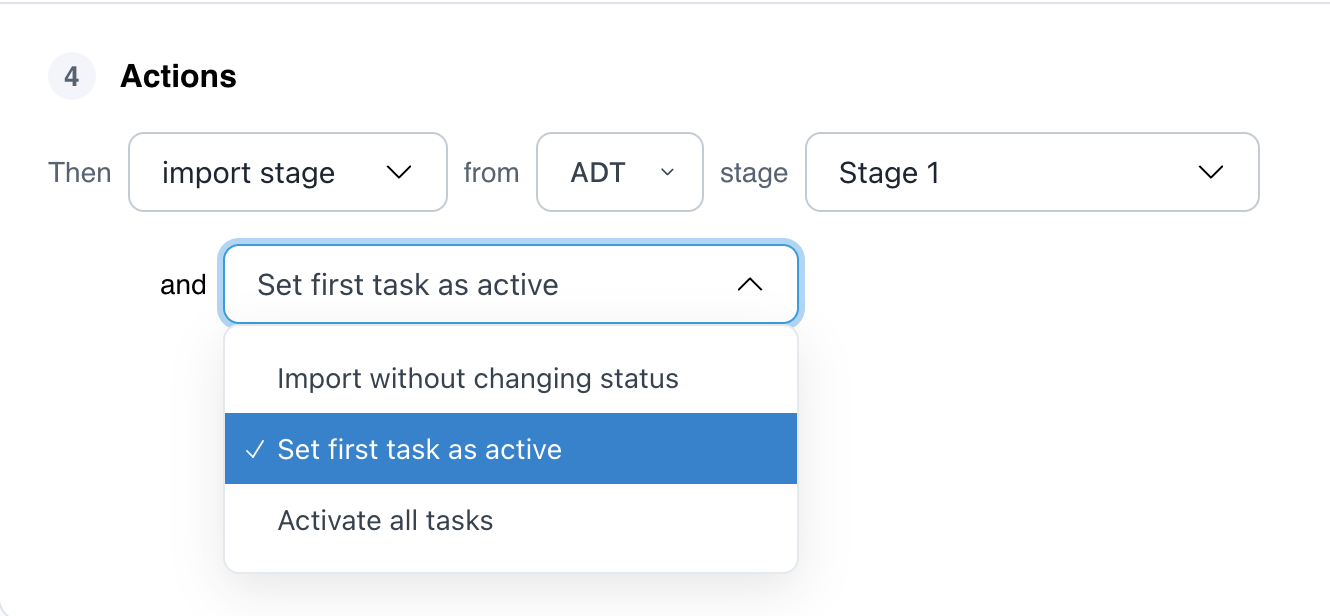
When you pick Import stage as an automation action, you now choose what happens to its tasks:
- Import without changing status - The stage arrives in draft, exactly as before. This is the default, and all existing automations retain this behavior.
- Set first task as active - The first task in the stage goes live and the stage starts. Later tasks wait their turn.
- Activate all tasks - Every task in the stage goes live at once and the stage starts.
"First" follows the task order in your template. Activated tasks never go unassigned: if you use project roles, they're assigned by role, and if you don't, portal tasks go to the first client added to the project and private tasks go to the project owner. Tasks imported as draft stay unassigned unless you use project roles.
Why it's useful
Many teams use Import stage automations to build one workflow that adapts to each client, adding stages based on the services a client requests, a change in scope, or how they answer their onboarding form. Until now, those stages sat in draft until someone noticed them. Now they can start working the moment they arrive.
For example, say your client onboarding template ends with a "Kickoff call" task, and you want the "Discovery" stage to follow. Set the automation to import Discovery with Set first task as active when the kickoff task is completed. The moment your team checks it off, the client sees their first Discovery task in their client portal. Nobody has to remember to start it.
Pick the option that fits how the stage runs:
- Set first task as active suits step-by-step stages, where each task leads into the next.
- Activate all tasks suits stages where the work can happen in any order, like a batch of intake forms.
- Import without changing status still makes sense when you want to review the stage before it goes live.
Want to see the difference? The Stages view in Durations reporting shows how long each stage takes, so you can watch the gaps between phases shrink.
How to set it up
- Open a project or template and go to Automations.
- Create an automation, or edit an existing one, and add a trigger.
- Add the action Import stage, then choose a template and a stage.
- In the new dropdown under the action, pick how the stage should start.
- Save.
Automations you already have keep working exactly as before. They use Import without changing status until you change the setting.
Have an idea for the next feature? Reply to any of our emails or send it through the in-app chat. That's how this one got built.