.svg)
May 20, 2026
How to Sync HubSpot with LaunchBay (And What to Sync in the First Place)
By
Sam Chlebowski
How to Sync HubSpot with LaunchBay
Many teams we speak with connecting LaunchBay's HubSpot integration for the first time arrive expecting a universal, two-way sync where every HubSpot property update automatically reflects in LaunchBay and vice versa. What it actually does is something different, and honestly, more useful. This guide breaks down how the integration works, why universal sync is the wrong goal anyway, and how to set up the specific data flows that actually matter for your team.
Why "Syncing Everything" Doesn't Work
One of the most common questions we hear from teams exploring LaunchBay's HubSpot integration for the first time is: "After we connect it, won't it just sync everything automatically?"
It's a fair question, and it's easy to see why people assume that's how it works. But this kind of universal, do-everything sync isn't something that comes out of the box with HubSpot, or really any other CRM tool. That's not a LaunchBay limitation; it's just not how CRM integrations are built.

More importantly, even if it were possible, it's not something we'd recommend. Continuous sync between a CRM and a client work platform sounds useful in theory, but in practice it creates more noise than signal. Your sales team and your delivery team don't need the same data. Sales doesn't need every onboarding task status, every file a client uploads, or every message they send in their portal. Your delivery team doesn't need every sales call note or deal property change. Trying to mirror everything in both tools just clutters both of them, and the information people actually need becomes harder to find, not easier.
Here's what's worth knowing though: syncing the data that actually matters between HubSpot and LaunchBay is completely doable, and the setup is more straightforward than most people expect. The rest of this guide covers exactly that.
If you're interested in deeper two-way sync between HubSpot and LaunchBay down the road, we'd love to hear about your use case. Send a note to hello@launchbay.com with the types of data you'd want synced and how you'd use it. That feedback directly shapes our roadmap.
LaunchBay's HubSpot Integration: What It Does and When to Use It
When a deal closes in HubSpot, LaunchBay automatically creates a project from one of your templates, invites the client to their portal, and assigns onboarding tasks for them to complete. No copying deal info over manually. No sending portal invites by hand. Your sales team closes the deal, and the team responsible for onboarding, implementation, or project delivery has everything they need. The client can start providing information and completing tasks in their portal right away, so work kicks off without any delays.
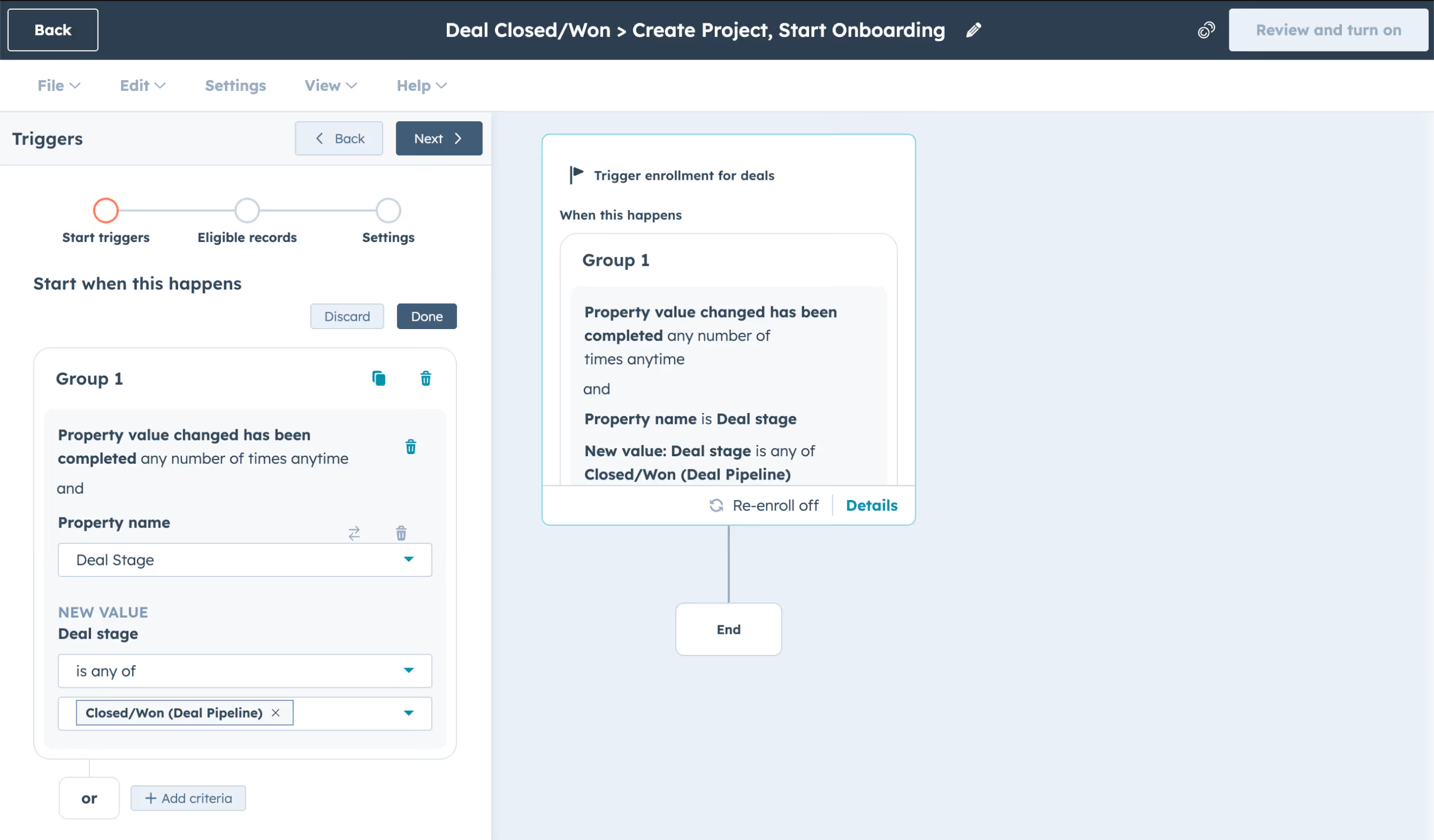
The most common triggers teams use to kick off this automation are:
- Deal Stage = Closed/Won
- Contact Lifecycle Stage = Customer
Any HubSpot workflow trigger you have access to can be configured to kick off the LaunchBay "Create Project" action, so you're not limited to those two. For a full walkthrough of how to set it up, see this guide.
For syncing data between HubSpot and LaunchBay after a project is created, and at specific points during its lifecycle, LaunchBay's Zapier integration is the right tool. The sections below cover how to set that up.
How to Outline Your Data Sync Before Getting Started
Before following the setup instructions below, it's worth taking a few minutes to map out what you actually want to sync and when. It doesn't need to be complicated. A simple list is enough. Doing this upfront will save time during setup and make it easier to hand off to your team or, if you've opted for our done-for-you implementation services, to the LaunchBay team.
Two questions will get you most of the way there:
1. What actions or milestones in LaunchBay should trigger something in HubSpot?
Think about the moments in a project where your sales or account management team needs to know something happened: a client completed their onboarding checklist, a signed contract was uploaded, a project stage was marked complete, or a client submitted a key form. These are the moments worth syncing.
2. When does your team need the same data in both tools?
If a client fills out an intake form in LaunchBay, does that data need to update their HubSpot contact record? If a file is uploaded, does it need to live in HubSpot too? If yes, it's worth a Zap. If it only matters inside the project, leave it there.
Here's what a simple sync outline might look like for a web design agency:
- When a client submits the onboarding intake form in LaunchBay, update their HubSpot contact record with the form data
- So the information clients provide during onboarding is accessible in HubSpot without anyone copying it over manually
- When the "Kickoff Complete" project stage is marked done, update the HubSpot deal stage to reflect it
- So account managers know delivery is underway without having to check LaunchBay
- When a client uploads a signed contract to their portal, log it as an engagement on the HubSpot deal
- So there's a clear record of when the contract was received, visible to anyone on the team in HubSpot
- When a tag like "Scope Change" is added to a project, update a custom deal property in HubSpot to flag it for the account manager
- So scope changes don't get lost in project activity and stay visible at the deal level
Four Zaps, each solving a specific problem. Once you have a list like this in hand, the setup instructions below map directly to what you need.
How to Sync HubSpot and LaunchBay: Seven Setups Worth Knowing
Before setting up any of the Zapier-based workflows below, make sure your LaunchBay account is connected to Zapier. You can find the setup instructions here.
Log Client Emails in HubSpot Automatically
The simplest way to log LaunchBay client communication in HubSpot doesn't require Zapier at all. LaunchBay's Auto BCC feature lets you add your HubSpot BCC email address to your account so that every email LaunchBay sends to a client is automatically logged in HubSpot on the associated contact record.
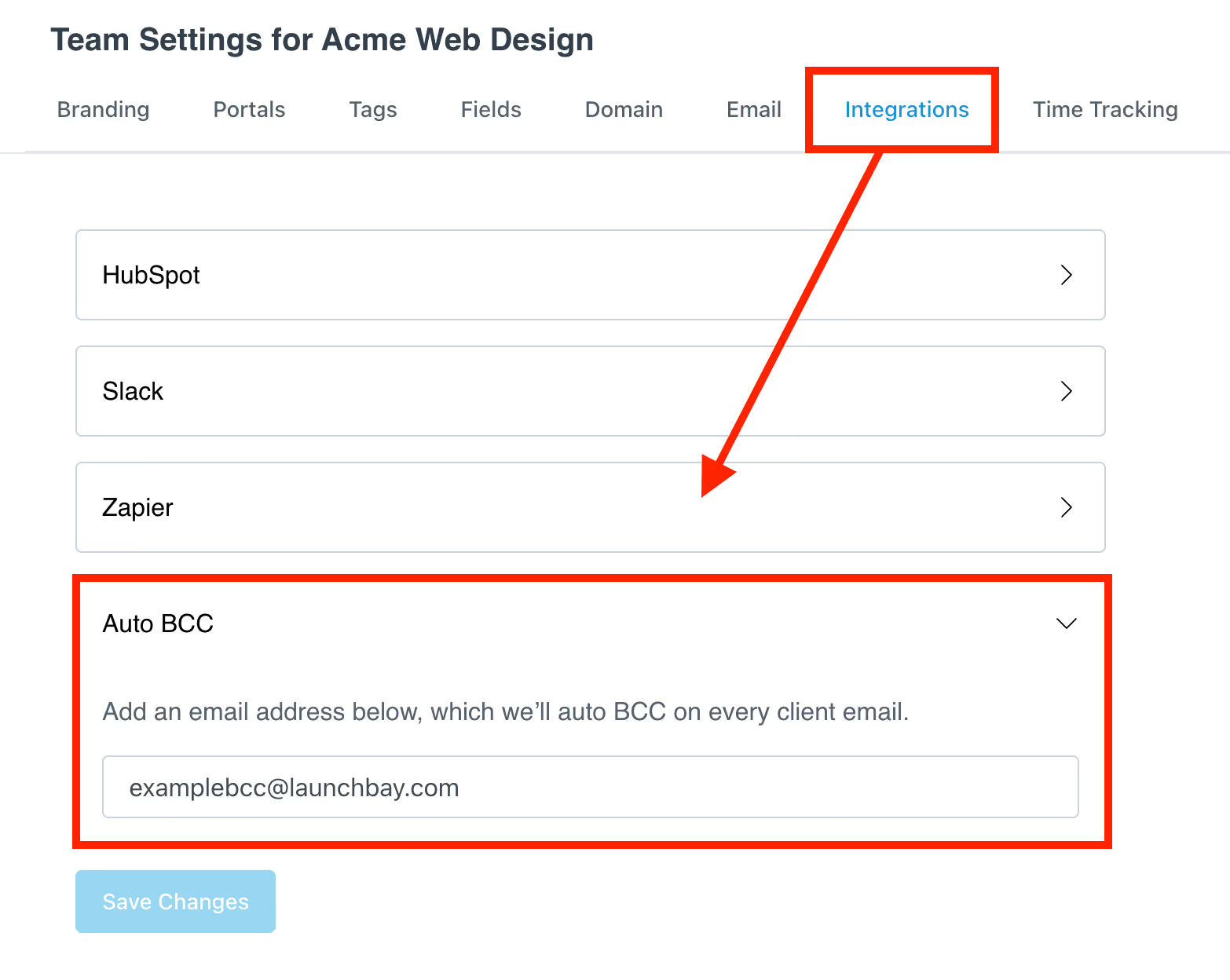
How to set it up:
- Find your HubSpot BCC email address. This HubSpot support article explains where to find it.
- In LaunchBay, go to Settings > Integrations and open the Auto BCC section.
- Paste your HubSpot BCC address and click Save.
From that point forward, every email LaunchBay sends to a client will appear in HubSpot, automatically matched to the contact record by email address.
Sync Stage Completion to HubSpot
If your team uses project tags in LaunchBay to mark milestones, flag project types, or signal internal handoffs, you can use LaunchBay's Tag Added Zapier trigger to push that information to HubSpot when a specific tag is applied.
Example use case: When a client completes their onboarding stage and the "Onboarding Complete" tag is applied in LaunchBay, update the HubSpot deal stage to move the contact from "Launch" to "Post-Launch Support" or set a custom deal property like "Website Status" to "Live."
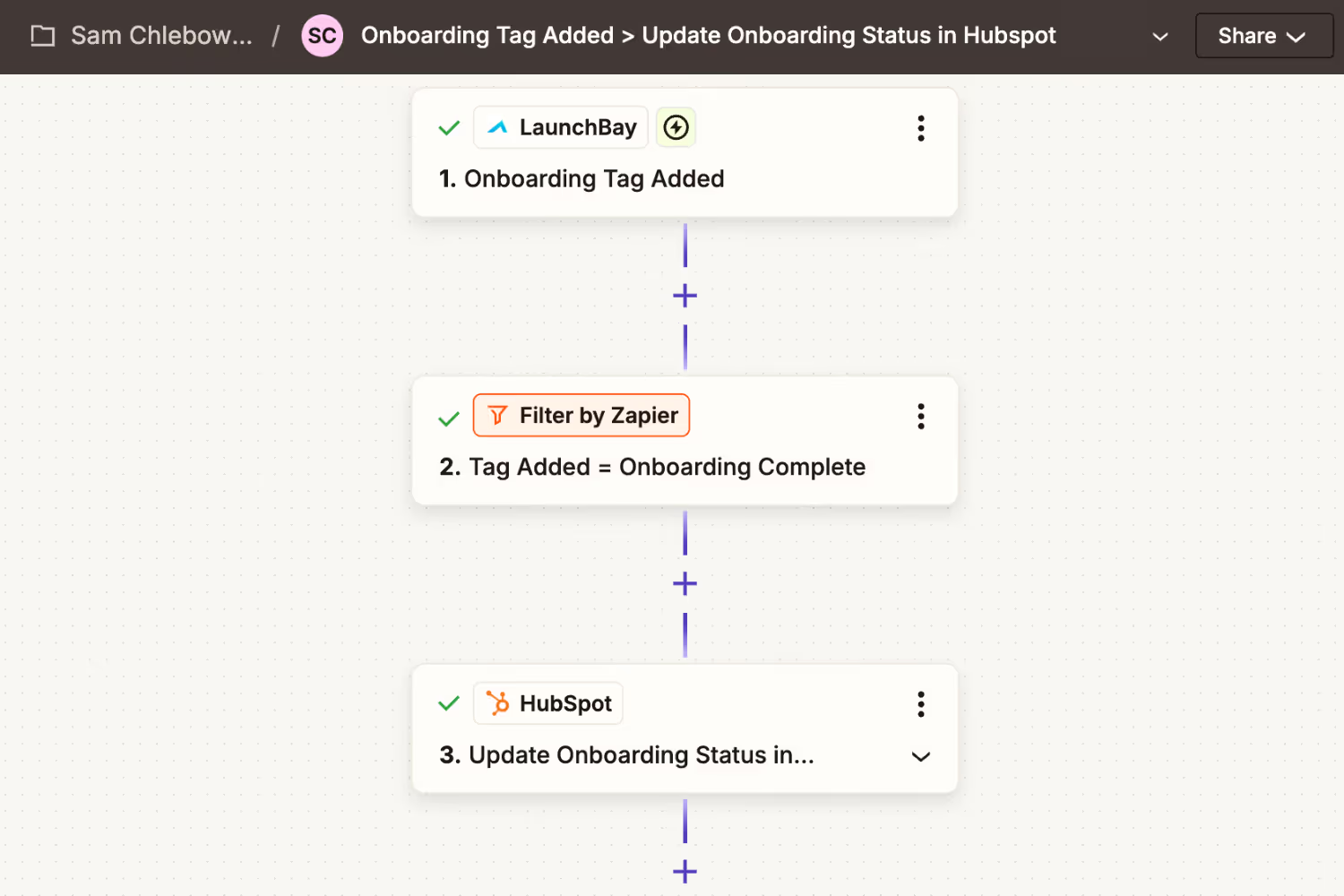
How to set it up:
- In Zapier, create a new Zap and set the trigger app to LaunchBay with the event set to Tag Added.
- Test the trigger to pull in sample data from a project.
- Add a HubSpot action. For most use cases, choose Update Deal or Update Contact.
- Map the relevant LaunchBay project fields (like project name or client email) to locate the corresponding HubSpot record, then configure which deal or contact property you want to update.
- Name your Zap and turn it on.
Tip: If you want this Zap to fire only for specific tags rather than every tag added to any project, add a Zapier Filter step between the trigger and the HubSpot action. Set the filter to continue only when the tag name matches the value you're looking for.
Sync Task Information, like Invoices or Contracts to HubSpot
When a key project task is completed in LaunchBay, you can automatically update HubSpot properties like changing custom properties for "Contract Signed" or "Invoice Paid" to "True."
Example use case: When a client completes their contract in a LaunchBay project, find the associated contact in HubSpot and set your custom property of "Contract Signed" to "True."
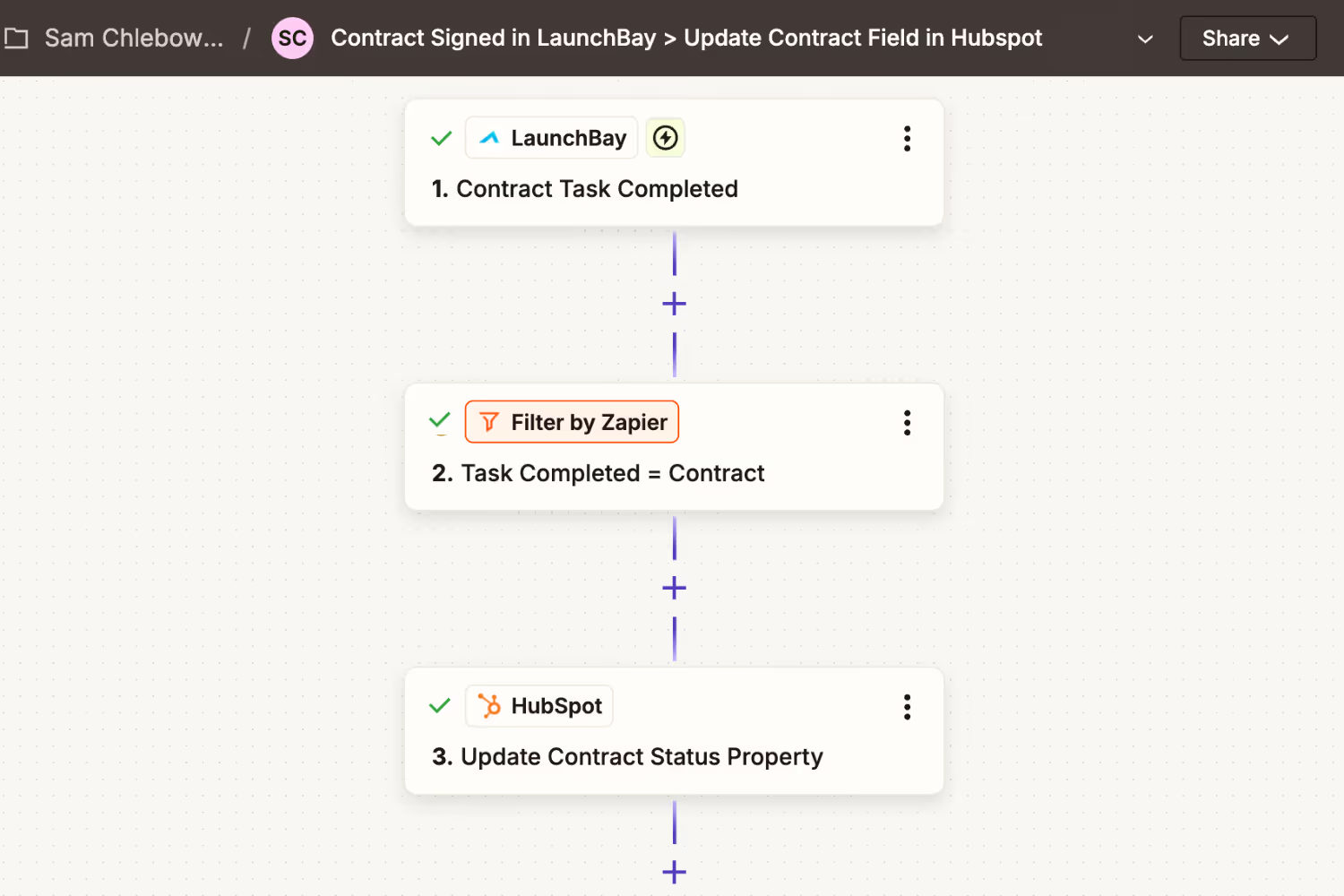
How to set it up:
- In Zapier, create a new Zap and set the trigger app to LaunchBay with the event set to Task Status Change.
- Test the trigger to pull in sample task data.
- Add a Filter step. Configure it to continue only when the task name matches the specific task you want to track (e.g., "Sign Contract" or "Pay Invoice").
- Add a HubSpot action: Create or Update Contact. Map the client email from the LaunchBay trigger to identify the correct contact, then set the relevant custom property (e.g., "Contract Signed") to "True."
- Name your Zap and turn it on.
Sync Form Data to HubSpot
When a client submits a form in their LaunchBay portal (like an onboarding intake form or a project questionnaire), you can automatically push that data into HubSpot, updating the contact record or deal with the information they provided.
Example use case: A client fills out a business intake form in their portal. The form responses automatically update their HubSpot contact record with fields like company address, primary contact name, or project preferences.
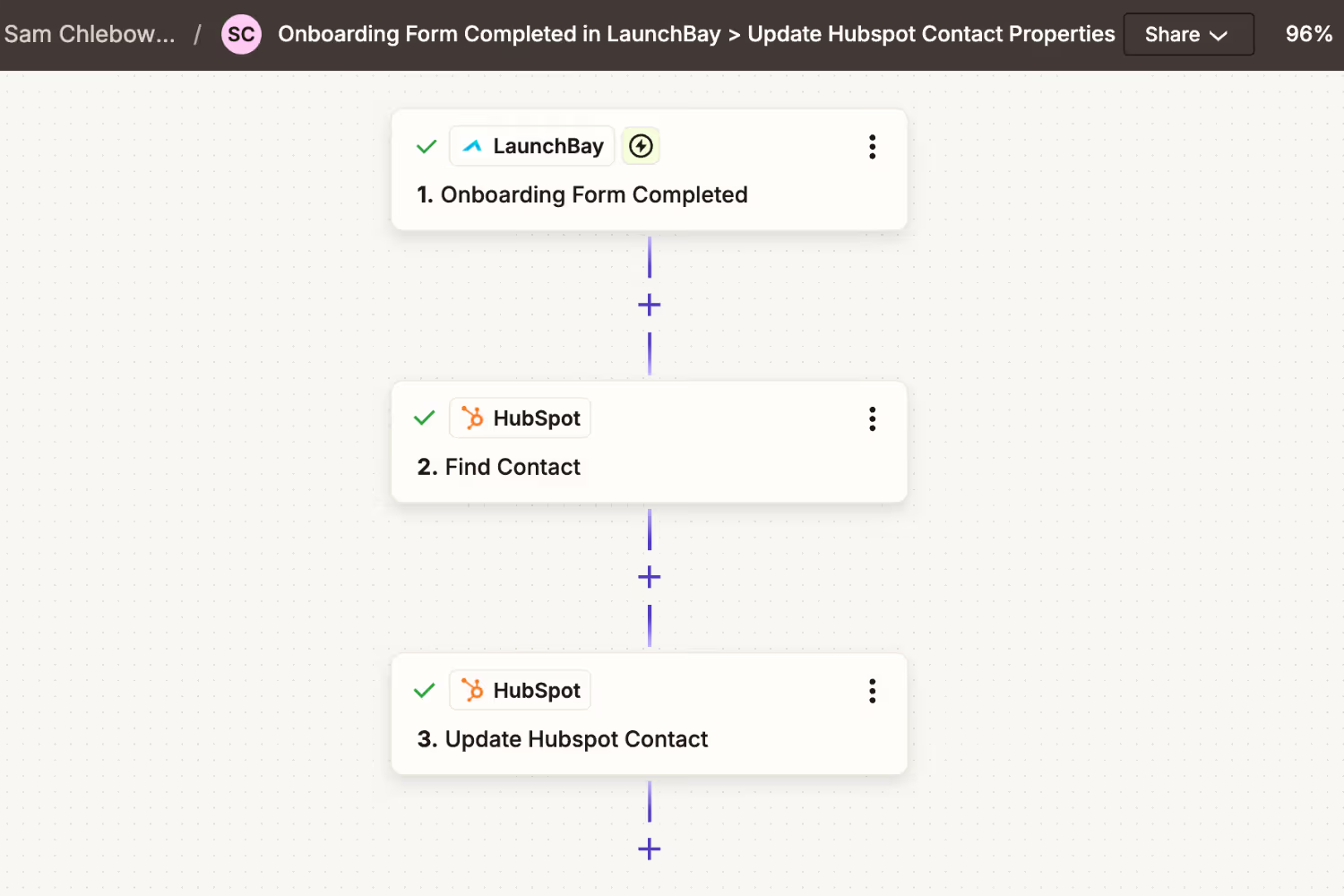
How to set it up:
- In Zapier, create a new Zap and set the trigger app to LaunchBay with the event set to Form Submission.
- Select the specific LaunchBay form you want to watch from the dropdown.
- Test the trigger to pull in a sample submission.
- Add a HubSpot action. Choose Create or Update Contact to update the contact record, or Update Deal to push data to the associated deal. If you want to log the submission as an activity rather than update a property directly, Create Engagement is a good option here as well.
- Map the form fields from LaunchBay to the corresponding HubSpot properties, name your Zap, and turn it on.
Sync Files to HubSpot
When a file is uploaded to a LaunchBay project (a signed contract, a completed deliverable, a client asset), you can automatically send it to HubSpot so it's accessible on the associated contact or deal record.
Example use case: A client uploads a signed contract to their portal. The file is automatically uploaded to HubSpot File Manager and logged as an engagement on the deal.
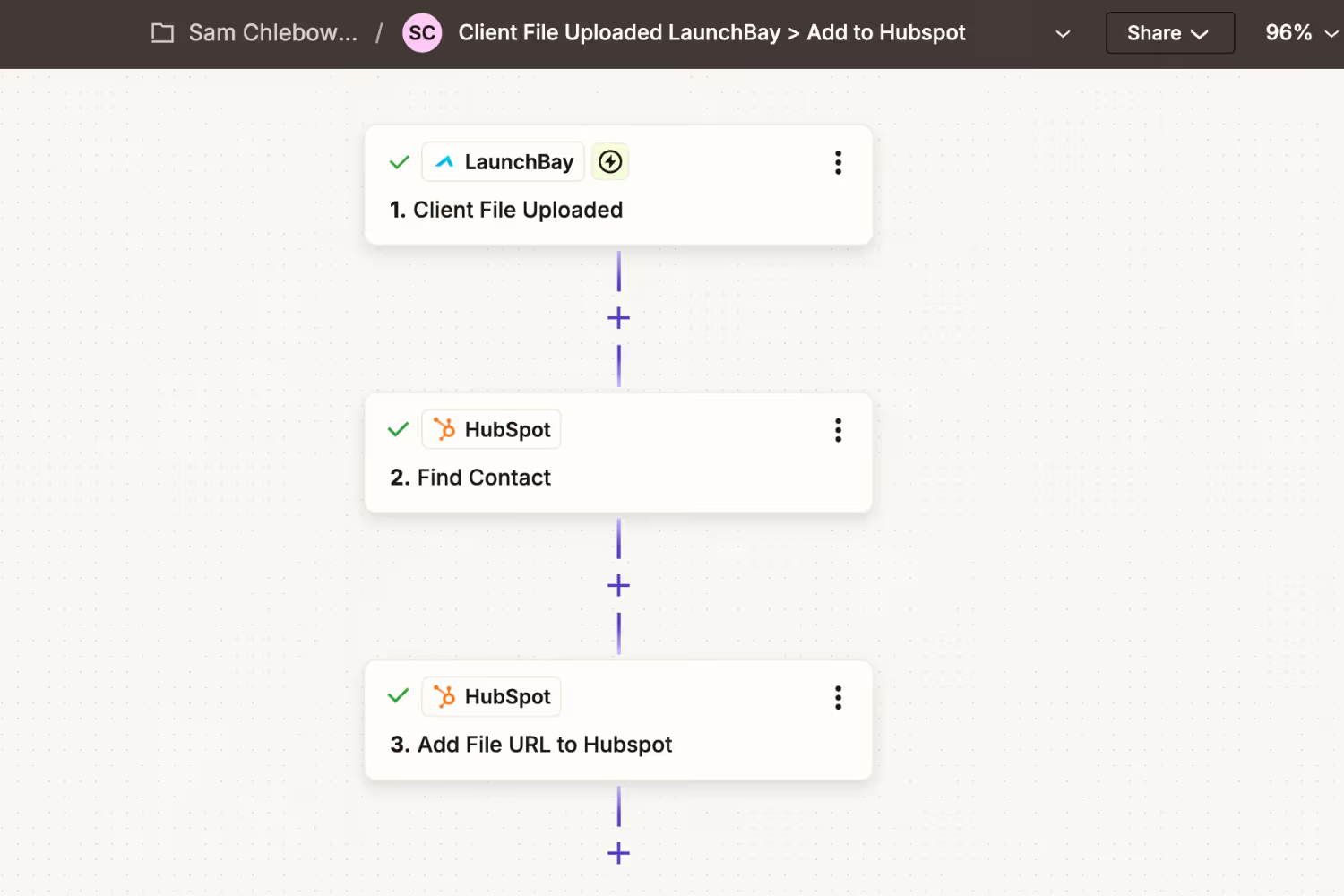
How to set it up:
- In Zapier, create a new Zap and set the trigger app to LaunchBay with the event set to File Uploaded.
- Test the trigger to pull in a sample file upload.
- Add a HubSpot action: Upload File. This sends the file to HubSpot File Manager. Map the file URL from the LaunchBay trigger to the file field in HubSpot.
- Add a second HubSpot action: Create Engagement. Use this to log a note on the associated contact or deal that references the uploaded file. Map the contact or deal using the client email or project name from the LaunchBay trigger data.
- Name your Zap and turn it on.
Note: This Zap requires two HubSpot action steps, so you'll need a Zapier plan that supports multi-step Zaps.
Sync Client Messages to HubSpot
When a client sends a message in their LaunchBay portal, you can log it as an engagement in HubSpot, keeping a record of client communication on the associated contact or deal so your team has full context without switching between tools.
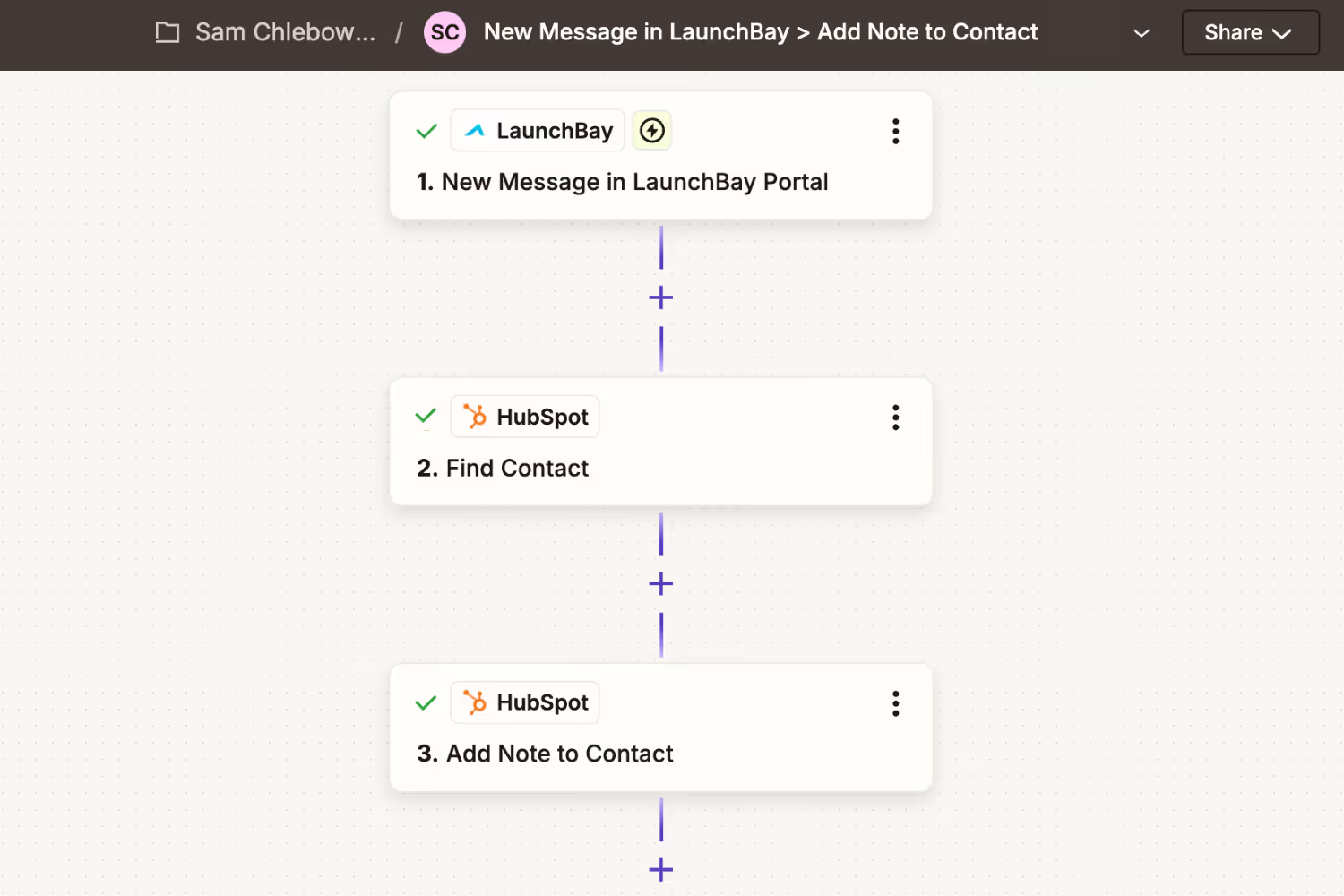
Example use case: A client sends a message in their portal asking about the project timeline. That message is automatically logged as a note on their HubSpot deal, visible to your account management team.
How to set it up:
- In Zapier, create a new Zap and set the trigger app to LaunchBay with the event set to Client Chat Message.
- Test the trigger to pull in a sample message.
- Add a HubSpot action: Create Engagement. Select "Note" as the engagement type.
- Map the message body from the LaunchBay trigger to the note content field. Map the client email or project name to identify the correct HubSpot contact or deal.
- Name your Zap and turn it on.
Sync Status Updates
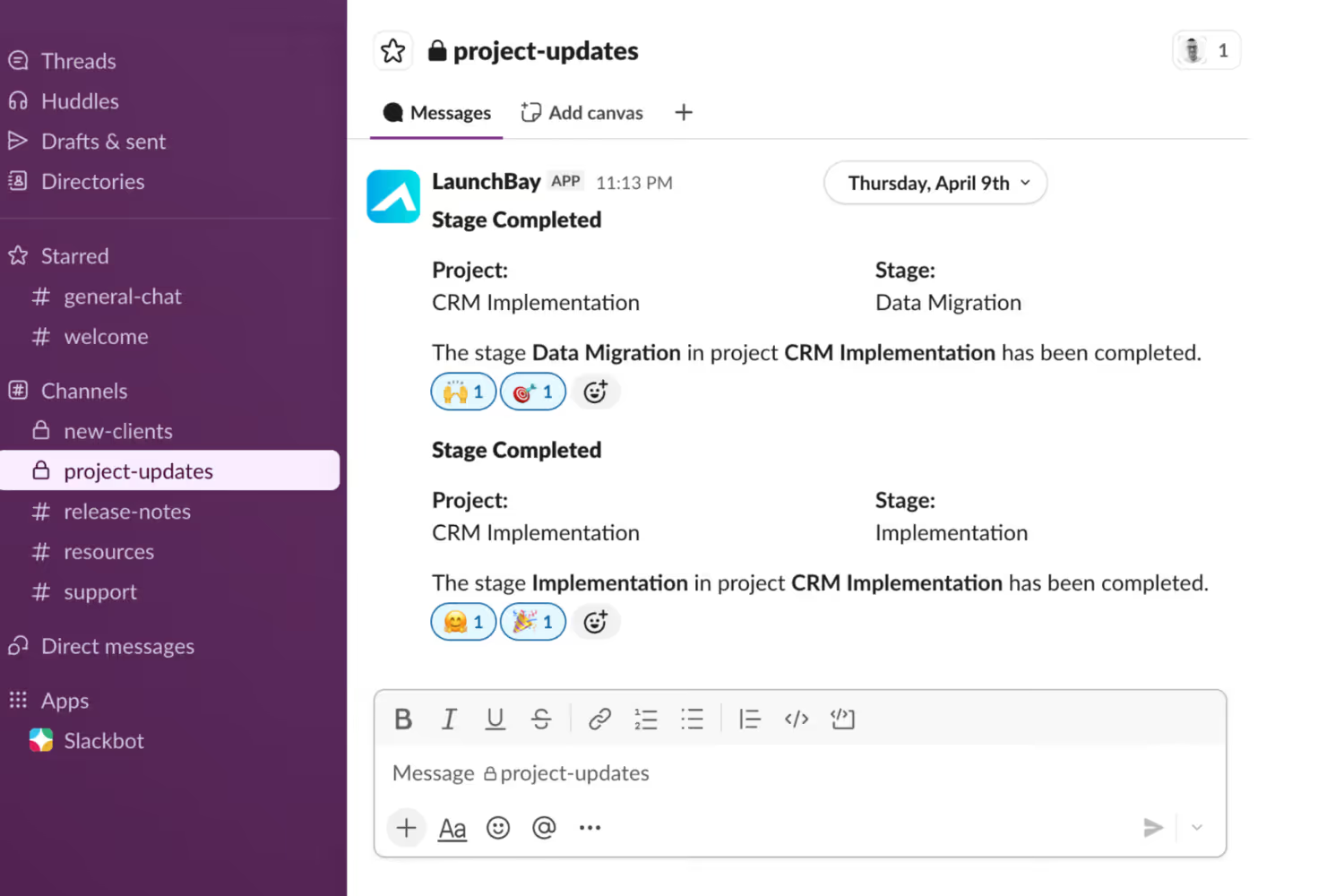
For keeping your team informed when a project stage is completed, LaunchBay's native Slack integration is the simplest path, and no Zapier is required.
Using the native Slack integration:
Once your Slack workspace is connected to LaunchBay (Settings > Integrations > Slack), you can enable stage notifications on individual projects or templates. When a stage is marked complete, LaunchBay automatically posts an update to the Slack channel you specify. You can enable this on any stage and choose different channels for different projects. Full setup instructions are here.
Syncing status updates to HubSpot via Zapier:
If you want stage completions to update HubSpot records rather than (or in addition to) posting to Slack, you can use the Task Status Change trigger to push that data to HubSpot. The setup follows the same pattern as the Stage Completion Zap described above. Filter for the specific task or stage you care about, then update a deal property or create an engagement to log it.
A Note on What Else You Can Sync
The setups above focus on HubSpot's core CRM functionality: contacts and deals. That's the right starting point for most teams using HubSpot for sales and account management. But HubSpot's Zapier integration supports a much wider range of objects, and it's worth knowing that LaunchBay can sync with other parts of HubSpot as well. If your team uses HubSpot Service Hub for customer support, for example, you can use the same LaunchBay Zapier triggers to log client activity as support tickets or update ticket properties.
If you'd rather have us set this up for you, hands-on implementation help is available for paying accounts. Reach out at hello@launchbay.com and we'll take it from there.


Get back to the work you're best at.
LaunchBay's AI-powered client portal handles the collecting, reminding, and following up, so your team spends less time chasing clients and more time delivering.
Ready to stop chasing?