October 30, 2026
Your Portal, Your Look: New Fonts and Colors for Client Portals

Part of our 31 Customer Improvements series, where we ship one feature our customers asked for every day this month.
Your client portal is often the first thing a new client sees after the contract is signed, at the start of client onboarding. It should feel like part of your brand, a true white label client portal, not someone else’s software.
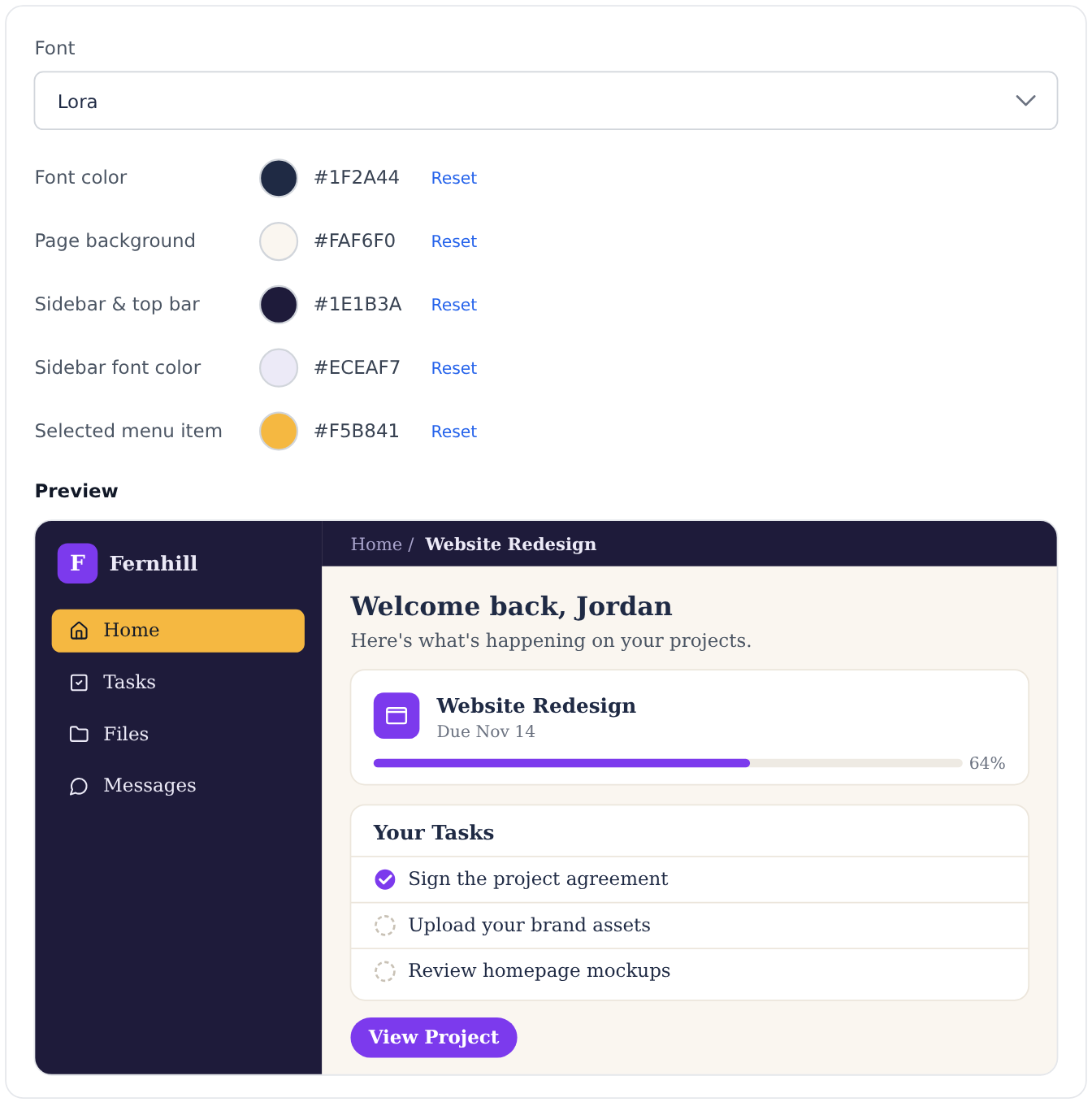
You could already add your logo, primary color, and a header image. Now you can also choose your portal’s font, font color, page background, and sidebar color, and see a live preview before your clients do.
What’s new
Four new settings sit alongside your existing branding. Each one has a default that matches how portals look today, so nothing changes until you change it.
13 fonts to choose from. Pick a clean sans-serif or a warmer serif:
- Sans-serif: Inter, Roboto, Open Sans, Lato, Source Sans 3, IBM Plex Sans, DM Sans, Plus Jakarta Sans, Figtree
- Serif: Lora, Source Serif 4, PT Serif, Noto Serif
We chose every font for its proportions. Each one fits the portal’s existing spacing, so long project names and task lists won’t wrap awkwardly or overflow.
Readable by default
A brand color that looks great on a button can be hard to read as body text, so LaunchBay checks every color combination before you save it.
Your font color has to stand out against three surfaces: white cards, your page background, and your sidebar. We use the WCAG AA accessibility standard, a 4.5:1 contrast ratio, the same bar we set for our color-blind-friendly project colors. If a combination falls short, you’ll see a warning that says which color to change, and the setting won’t save until it’s readable.
That means you can experiment freely. Your clients will never get a portal they have to squint at.
See it before your clients do
As you change a setting, a live preview of your portal updates right beside it. It shows a sample home page with your logo, sidebar menu, a project card, a task list, and a button.
The preview uses your real primary color, so you can see how your highlights, progress bars, and buttons look against the new font and backgrounds. Your primary color already carries through to redesigned portal forms, so the whole portal stays consistent. Each font in the menu is also shown in its own typeface, so you can compare them at a glance.
How to set it up
- Go to Team Settings and open the Portals tab.
- Scroll to Portal Appearance.
- Pick a font from the menu.
- Set your font color, page background, and sidebar & top bar color. Click Reset next to any color to go back to the default.
- Check the preview. If you see a contrast warning, adjust the color it names.
- Click Save Changes.
Your changes appear in every client portal right away, on desktop and mobile. To change your primary color or logo, use the Branding tab.
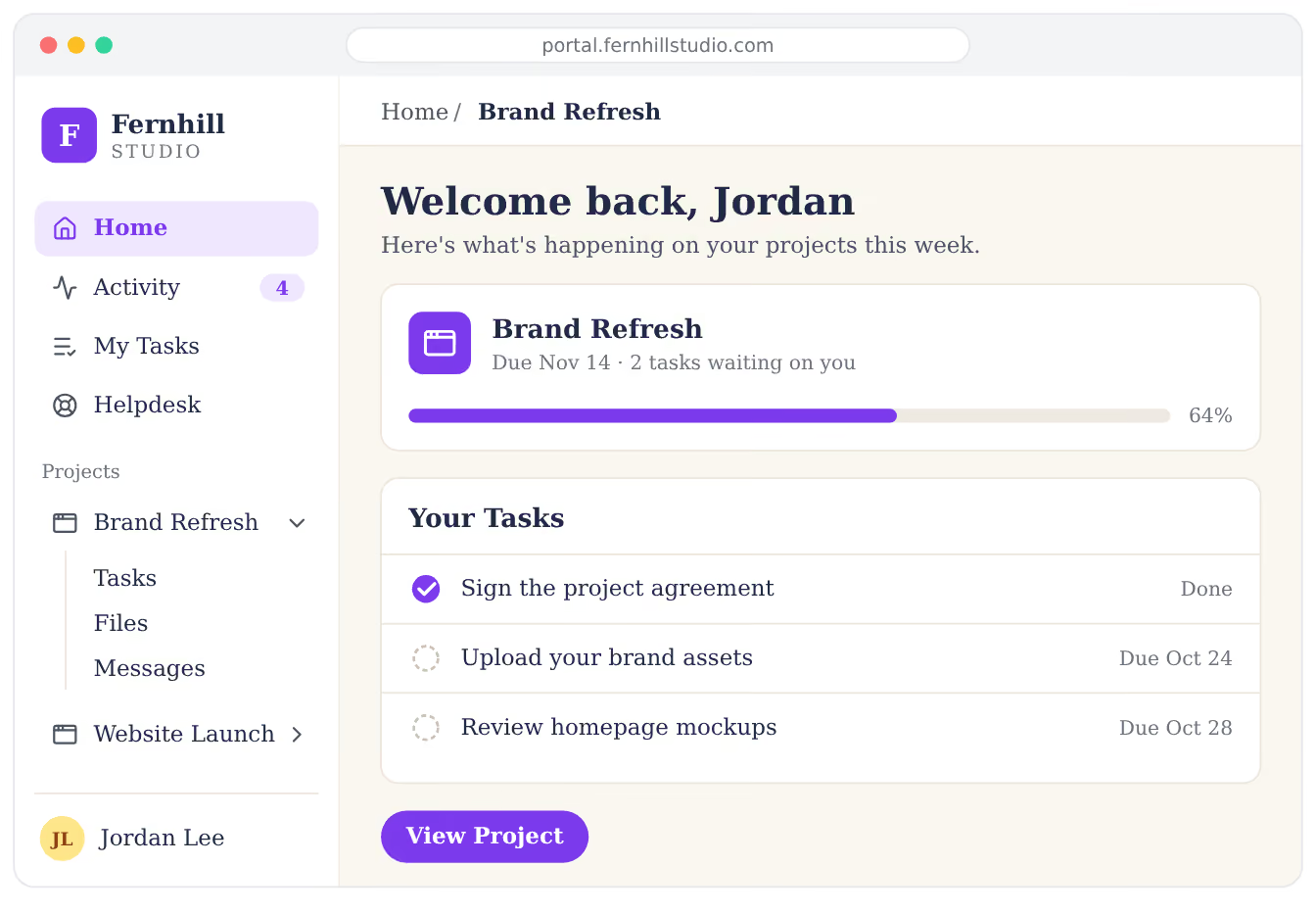
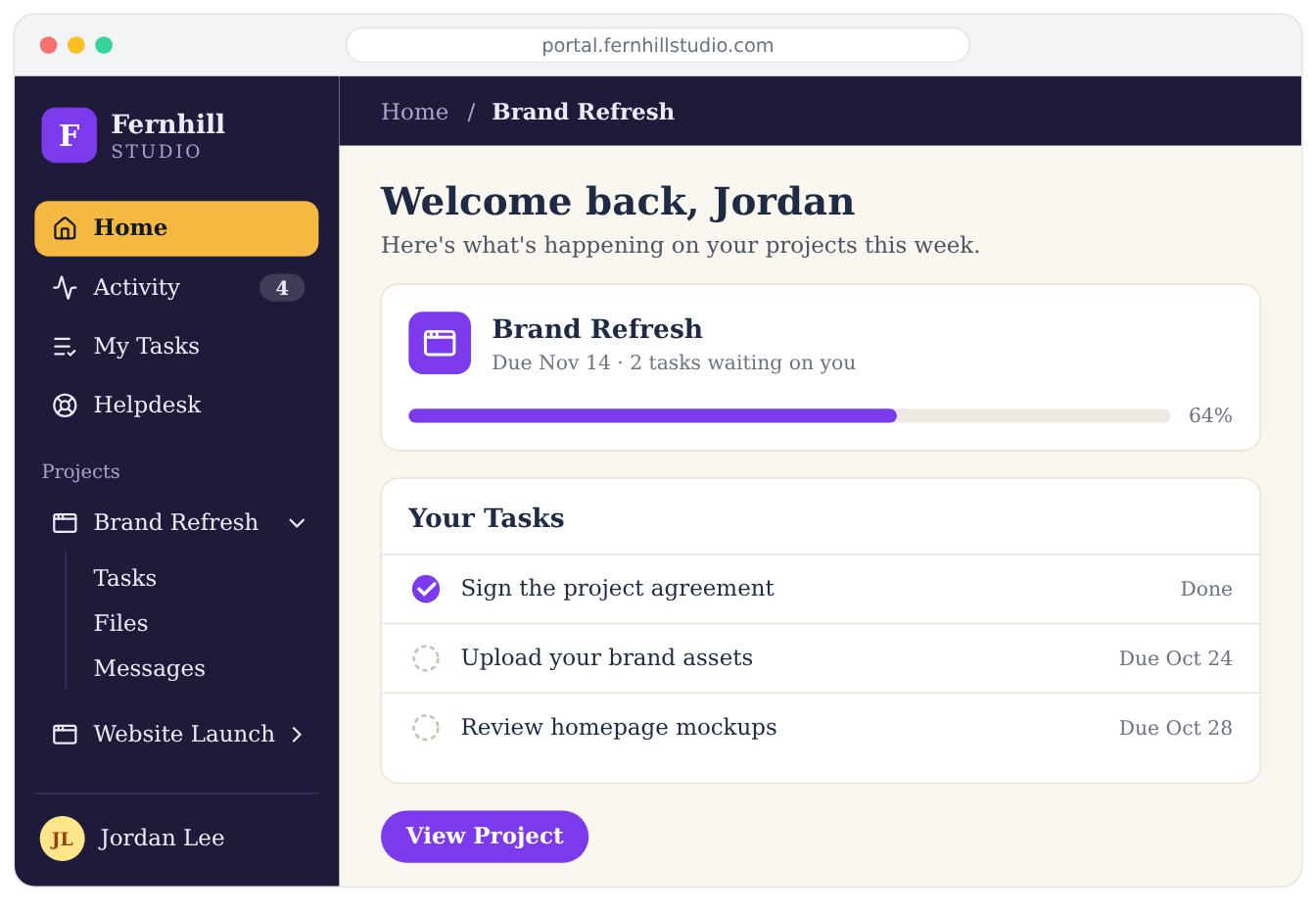
Go dark if you like. Set a sidebar font color, and the sidebar and top bar can be as dark as your brand. Pick your own color for the selected menu item too. Its text switches to white or dark automatically, so it always reads.
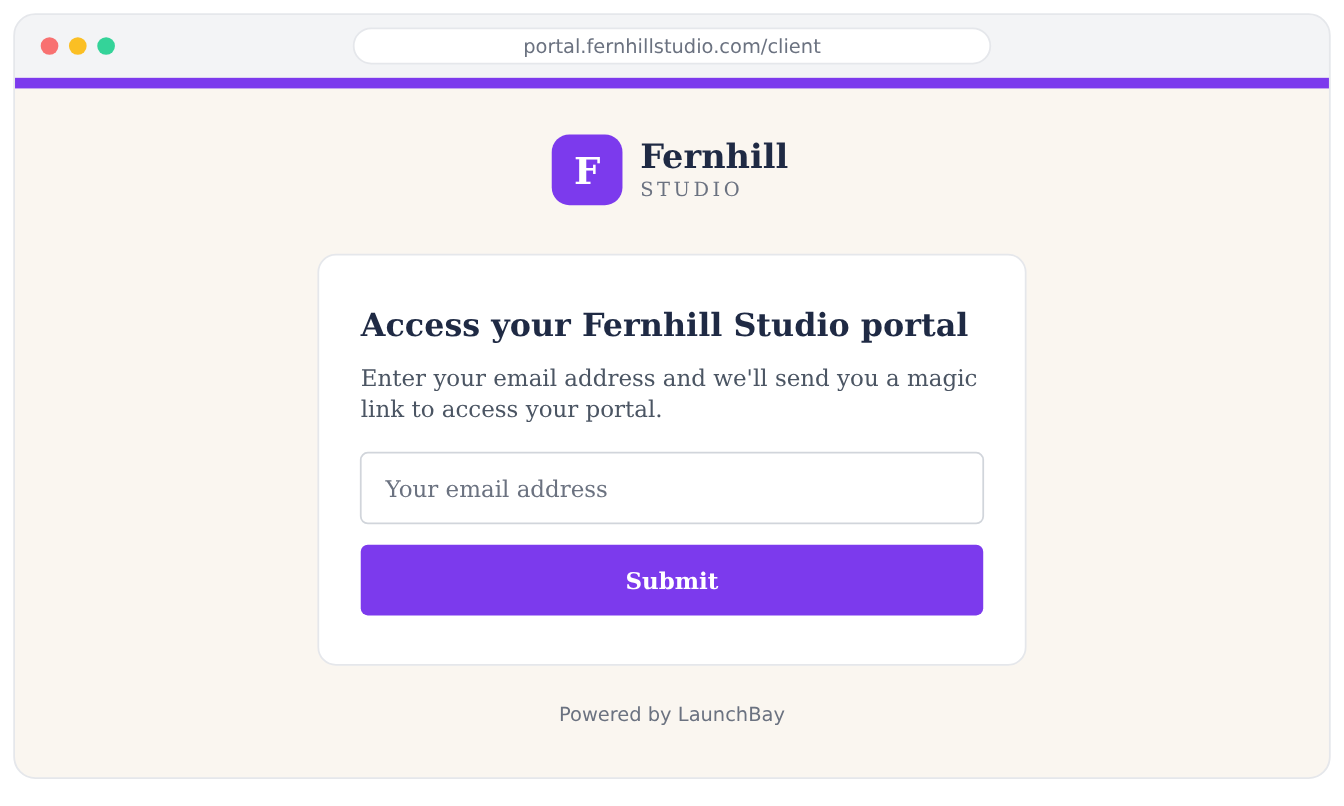
You'll also see your style changes reflected in the portal login page, so it's a consistent experience for your clients from the very start!
Make it yours
A portal that matches your brand tells clients they’re in the right place and in good hands. In a few clicks, yours can carry the same look as your website and proposals. That’s what client portal software should feel like.
Open Team Settings → Portals to try it now. Have an idea for the next improvement? Reply to any of our emails or send it through the in-app chat. That’s how this one got built.