.svg)
October 26, 2026
Keep Project End Dates Accurate with Automations
.png)
Part of our 31 Customer Improvements series, where we ship one feature our customers asked for every day this month.
Automations can now set a project’s target end date for you. Pick Set project end date as an action, enter a number of days, and LaunchBay moves the target end date to that many days after the automation runs.
Target end dates are easy to set at kickoff and easy to forget afterward. A client signs late, client onboarding drags, and the date on the project no longer means anything. Until now, someone had to remember to open the project and fix it by hand.
What’s new
There’s a new Project group in the automation action list with one action: Set project end date. Choose it, then enter how many days out the end date should land.
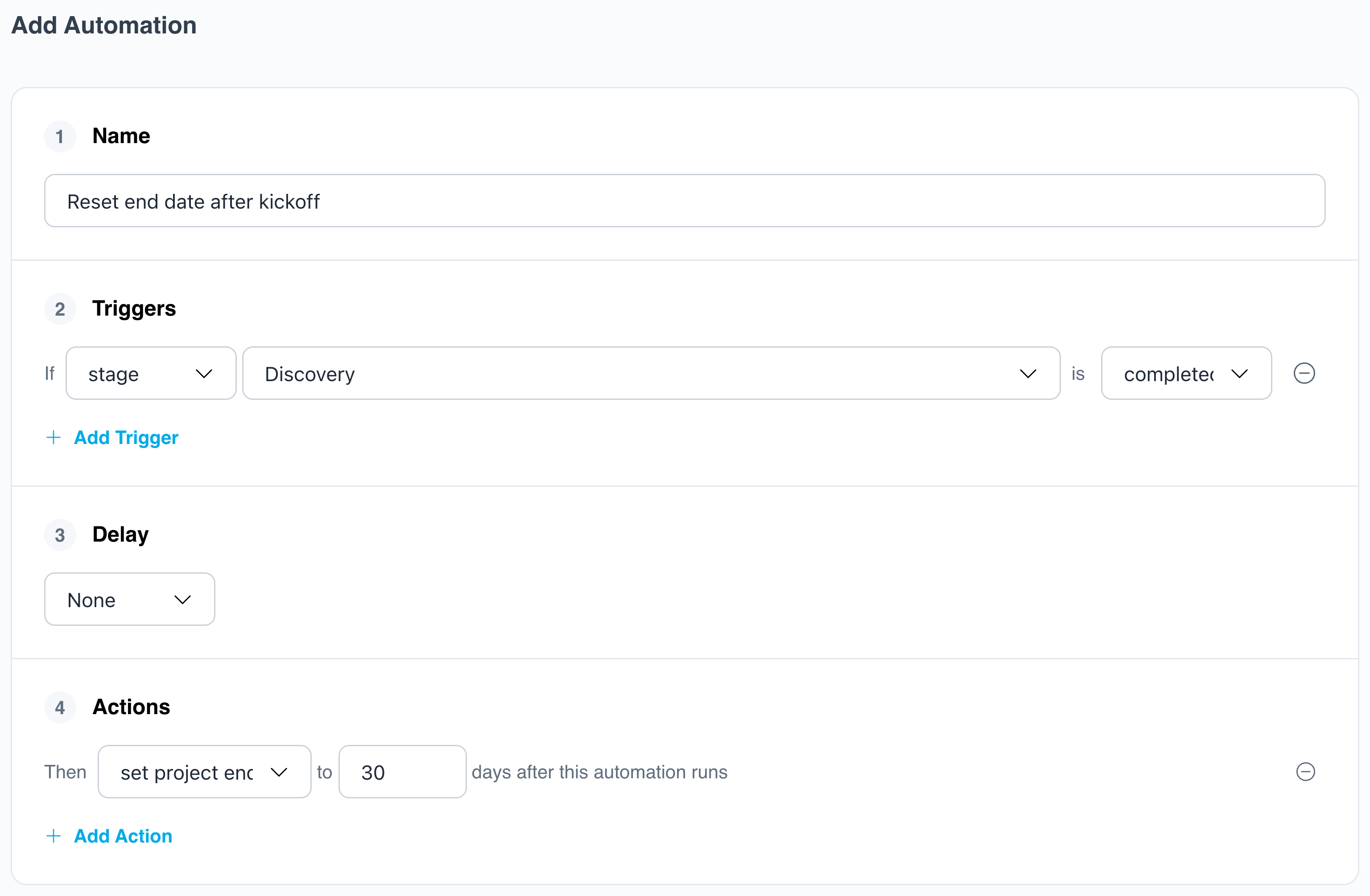
The example above reads in plain English: when the Discovery stage is completed, set the project end date to 30 days after this automation runs. The rule shows up the same way in your automations list, under a blue calendar badge labeled Set Project End Date.
How it works
- Counted from when it runs. The date is today plus your number of days, at the moment the automation fires. It overwrites whatever target end date the project had.
- Your team’s calendar. “Today” uses your team’s timezone. If your team skips weekends, only weekdays count, so 10 days is two working weeks.
- Works with delays. Add a delay, and the clock starts when the delayed action actually runs, not when it was triggered.
- Any trigger. Pair it with a stage or task changing status, a form being submitted, or a project tag being added.
- Logged in History. Each run is recorded with the date it set, like “set the project end date to Dec 4, 2026 (30 days out).”
- Available to AI assistants. The LaunchBay MCP supports the action too, so you can ask Claude to set it up for you.
Recipes to try
The contract recipe works especially well now that contract tasks complete themselves when the last signer finishes. The end date resets the moment the contract is signed, with no clicks from anyone.
Why it matters
Accurate end dates aren’t just for the project page. The On-Time Rate in Durations reporting measures completed projects against their target end date. When the date reflects when work actually started, your on-time numbers reflect how your team actually performs on every client implementation.
Get started
- Open a project or template and go to Automations.
- Create an automation and add a trigger.
- Under Project, choose Set project end date and enter the number of days.
- Save.
Set it up in a template, and every new project gets the rule automatically.