.svg)
Jun 1, 2026
Introducing Meetings 2.0: Easier Scheduling, More Productive Calls, Faster Follow-Up
By
Sam Chlebowski
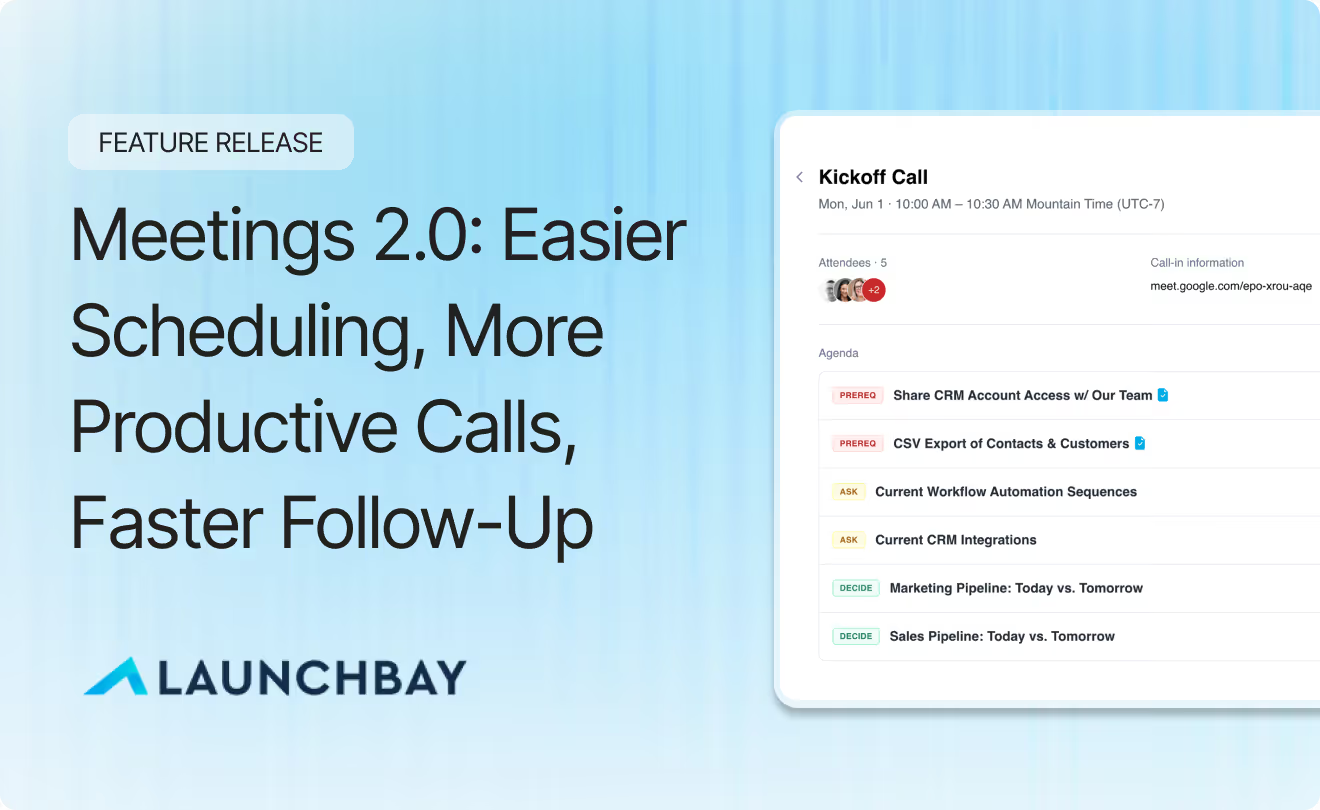
You know the drill. You wrap up a call, have three things you need to send the client, two tasks to create, and one status to update. Then your next meeting starts in four minutes. By the time you resurface, half of it is fuzzy and the other half is just not done.
Meetings 2.0 fixes all three parts of that. Easier scheduling so nothing falls through the cracks before the call. More productive meetings with structured agendas and client prep that happens automatically. Faster follow-up with AI summaries, one-click task creation, and automations that kick off the next phase of work the moment the call ends.
All in one place.
Why We Built It
Client meeting management has always been one of the messier parts of running a service business. For agencies, consultants, and SaaS implementation teams, it's not just about showing up to the call - it's everything around it. The prep, the follow-through, the client reminders that fall through the cracks.
Meetings were already part of LaunchBay. You could log them, share them with clients, and keep everything in one place. But the gap between "meeting happened" and "work is moving" was still manual.
Teams were leaving calls and then going to create tasks, update statuses, and chase clients on things that were agreed on 20 minutes ago. On a slow day, that's manageable. On a day where you're moving from one client call to the next, it falls apart fast.
We rebuilt Meetings to close that gap. The goal was to make a meeting a trigger, not just a record.
How It Works
The sections below walk through everything that's new. Prefer a hands-on how-to? Head to our Meetings Knowledge Base article for step-by-step instructions.
Creating a meeting
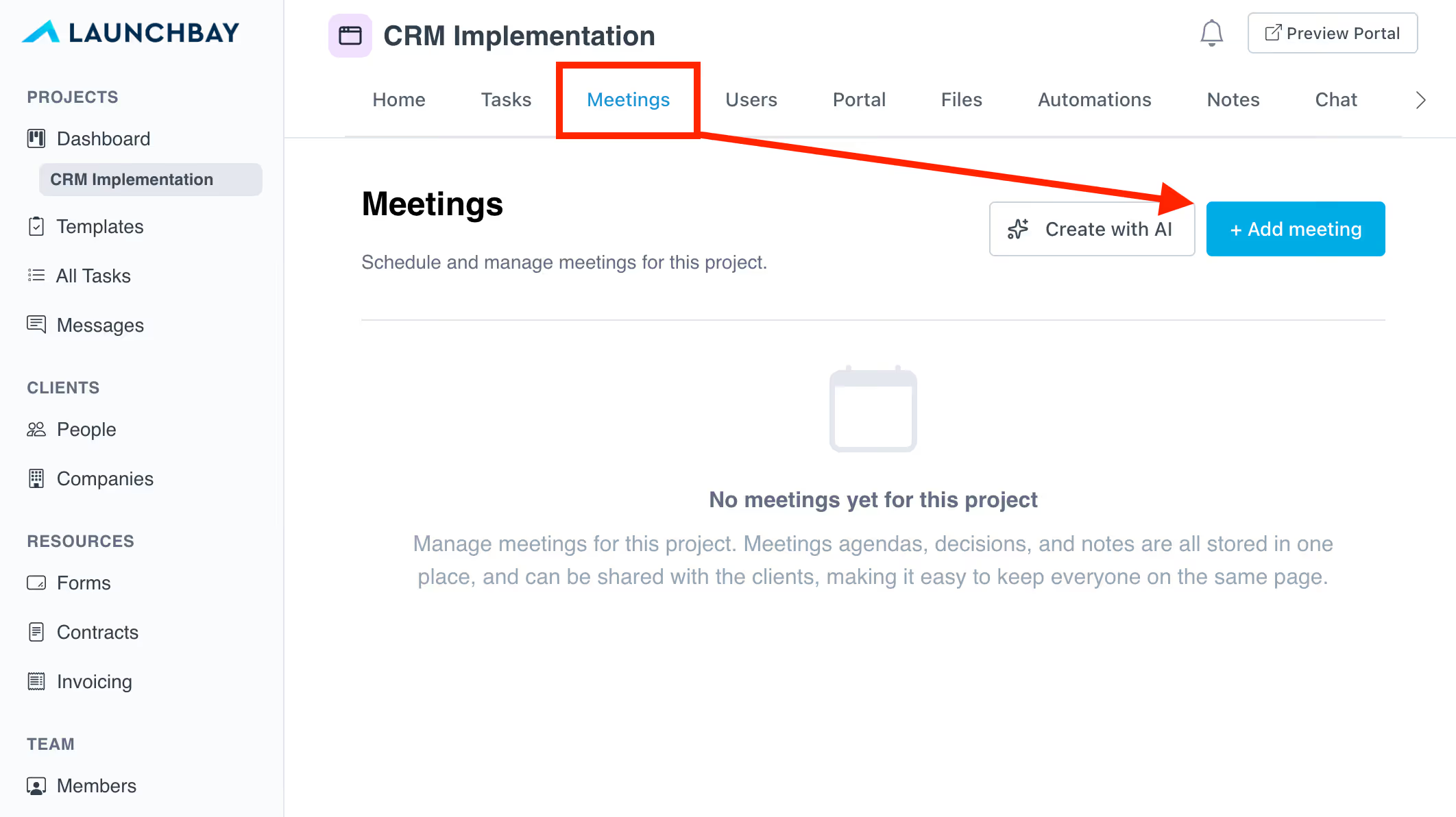
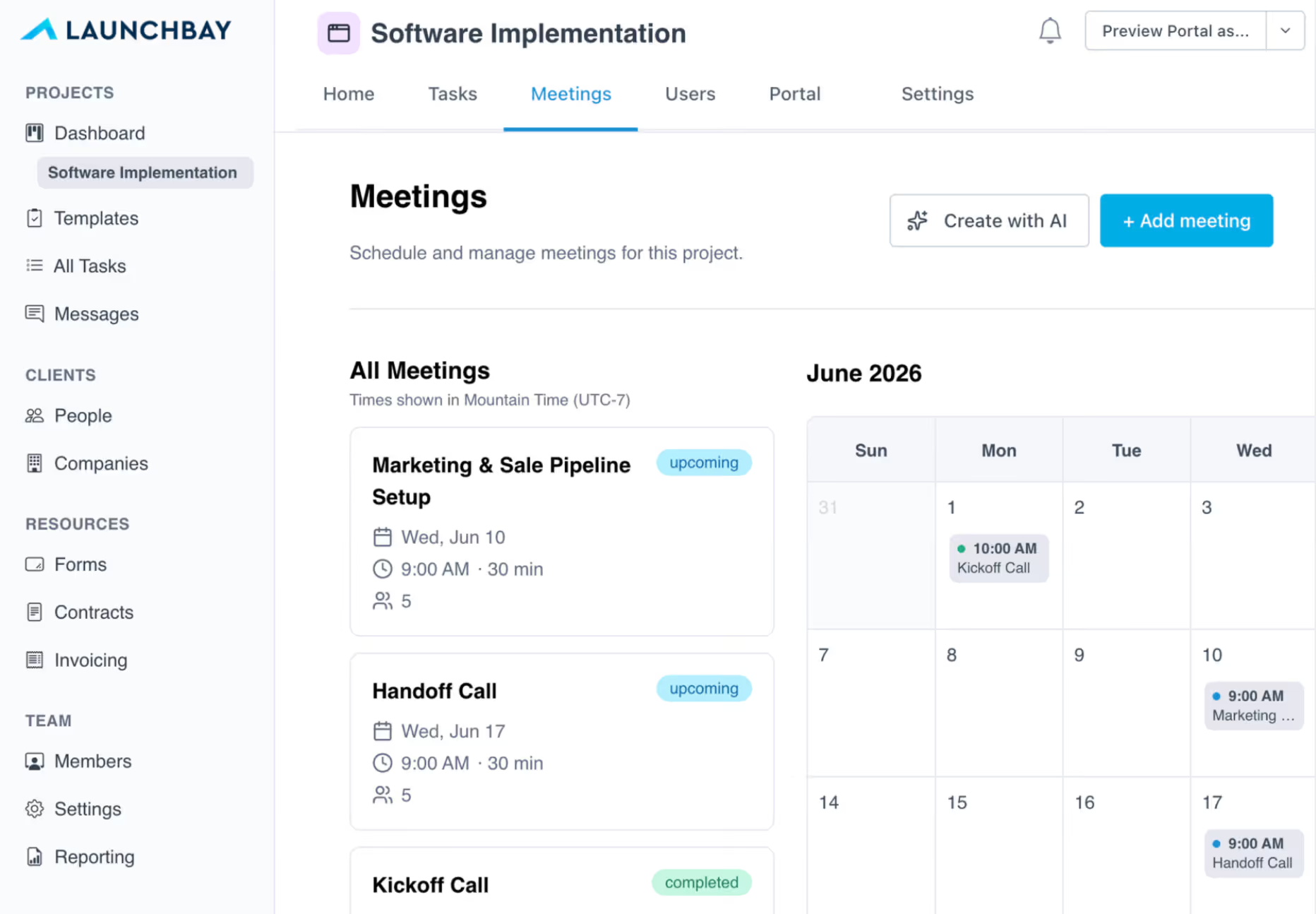
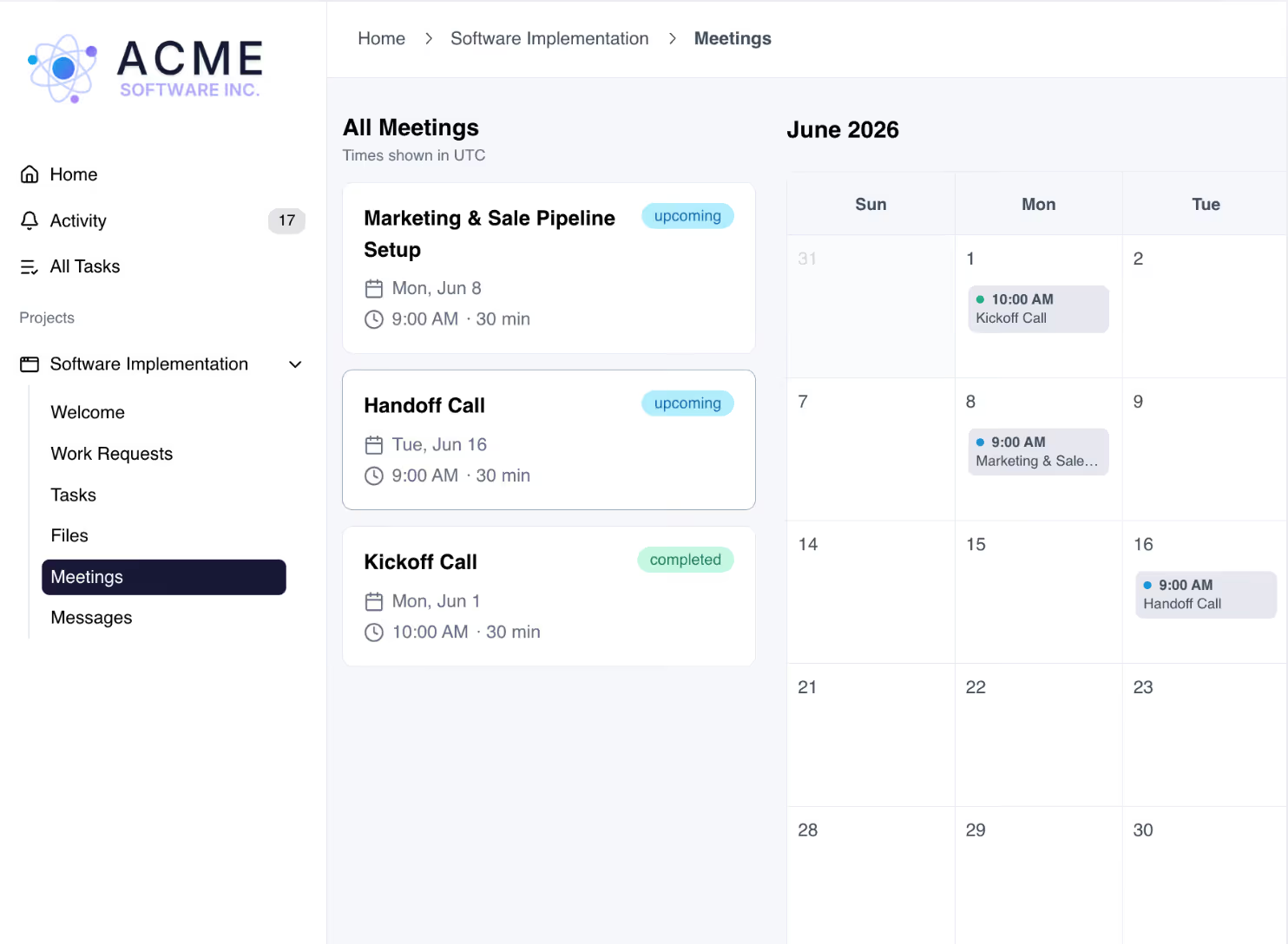
From your project's Meetings tab, click "+ Add meeting" to set up a new one. Fill in the title, date, time, duration, and call-in link. Add attendees from your project, and the meeting shows up in a calendar view alongside your full list.
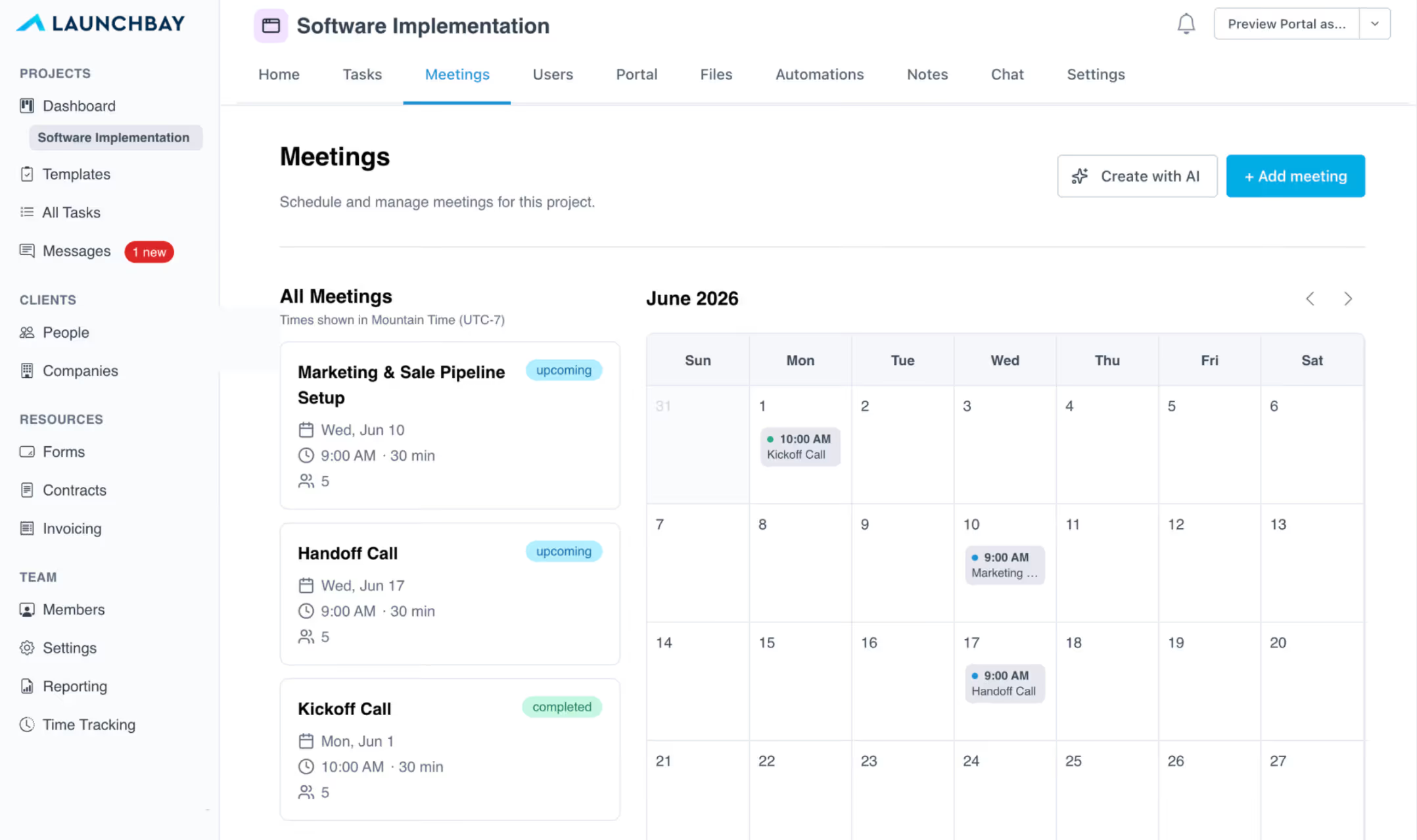
The calendar view is new, and it's available on both sides. Your team gets a full monthly calendar of every meeting in the project so you can see what's scheduled at a glance without scrolling through a list. Clients get the same view in their portal - they can see upcoming meetings, what's been completed, and where things land in the month. It's a small thing that makes a big difference in how organized the whole engagement feels.
Building an agenda
Agendas now have structure. Each agenda item gets a type: Prerequisite, Discuss, Decide, or Ask. This keeps everyone aligned going into the call on what needs to happen versus what's just up for conversation.
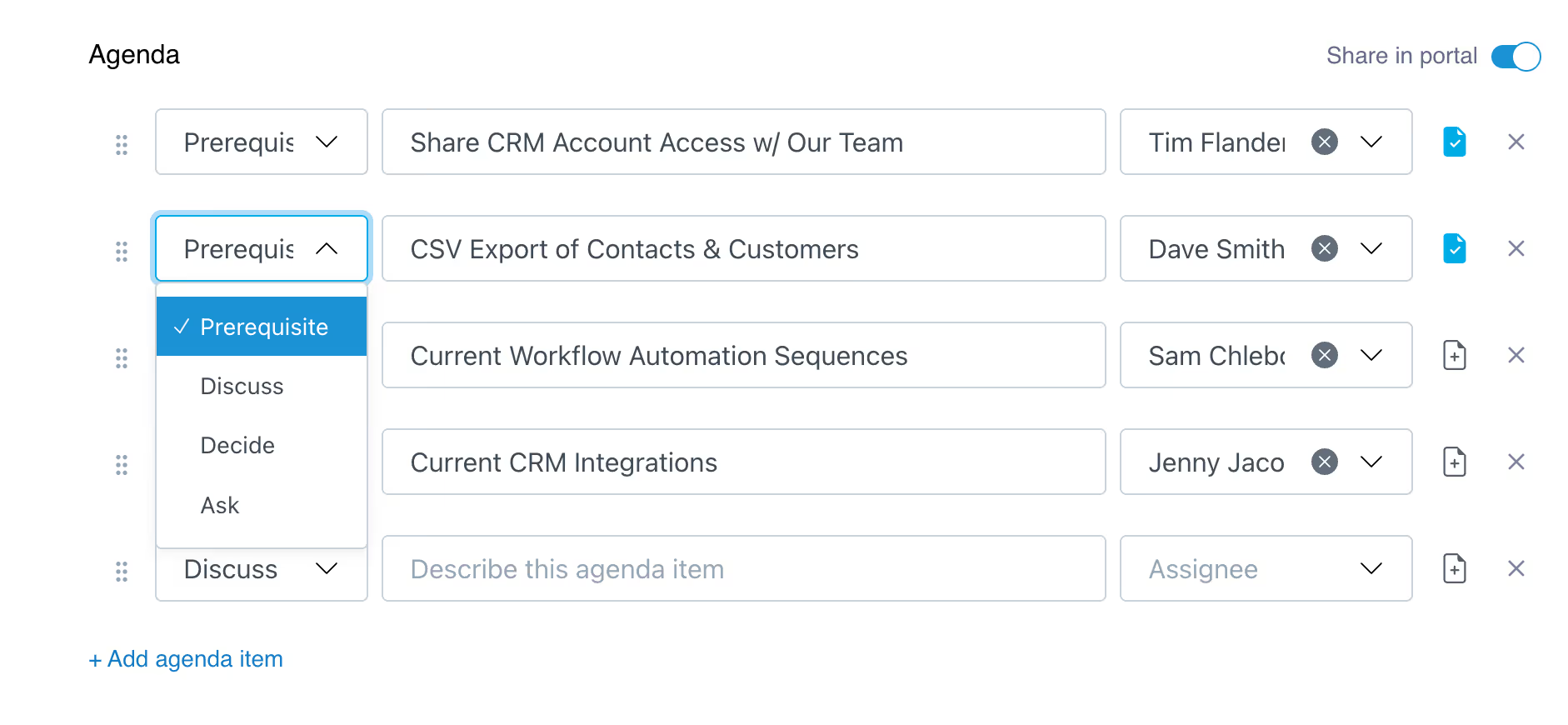
Agenda items can be linked directly to existing tasks in the project. This works for any item type, but it's especially powerful for prerequisites. When you attach a task to a prerequisite agenda item and set the task due date before the meeting, LaunchBay follows up with the client automatically. Need a contact export or CRM access before the kickoff call? Set the due date a day or two out and LaunchBay handles the reminder. The client shows up prepared. You never had to chase them.
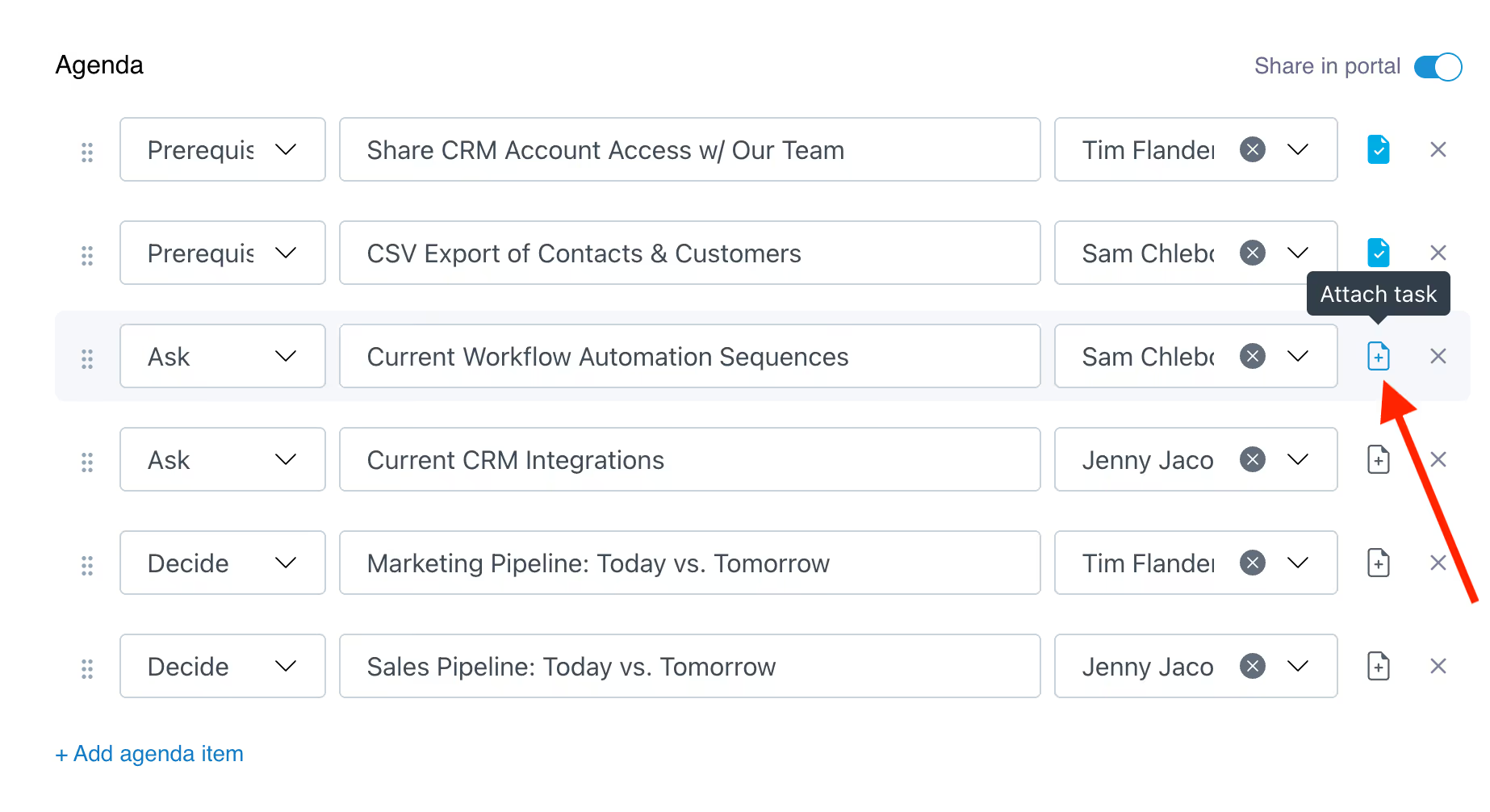
Toggle "Share in portal" on to make the agenda visible to clients in their client portal ahead of the call.
Logging what happened
After a call, paste in your transcript. Turn on "Summarize with AI" and LaunchBay reads it, identifies what was discussed, pulls out action items by attendee, and generates a next steps list with one-click "Create task" options for each one. You're not manually triaging a recording at 6pm. LaunchBay does it while it's still fresh.
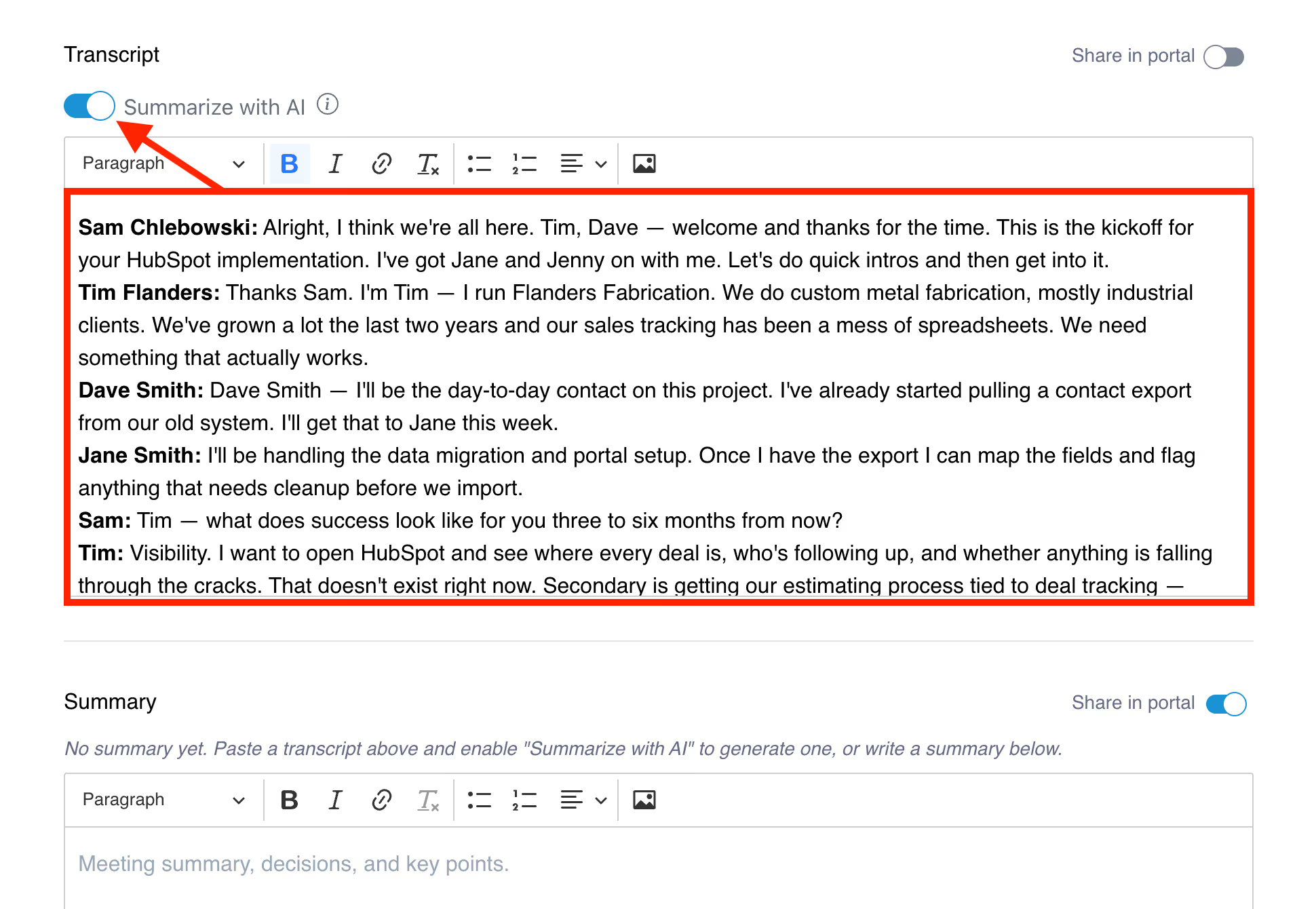
If you use a transcription tool - Fathom, Otter.ai, Gong, Avoma, Sybill, or others - you can also push transcripts directly into LaunchBay via Zapier without any copy-paste. More on that below.
The Summary field is portal-visible when you toggle it on. The Internal Notes field is never shared with clients, so your team has a private space for context that stays internal.
Automating what comes next
Each meeting can have a workflow attached: when the meeting hits a certain status, LaunchBay takes an action. Activate a project stage. Activate a specific task. Add a tag to the project.
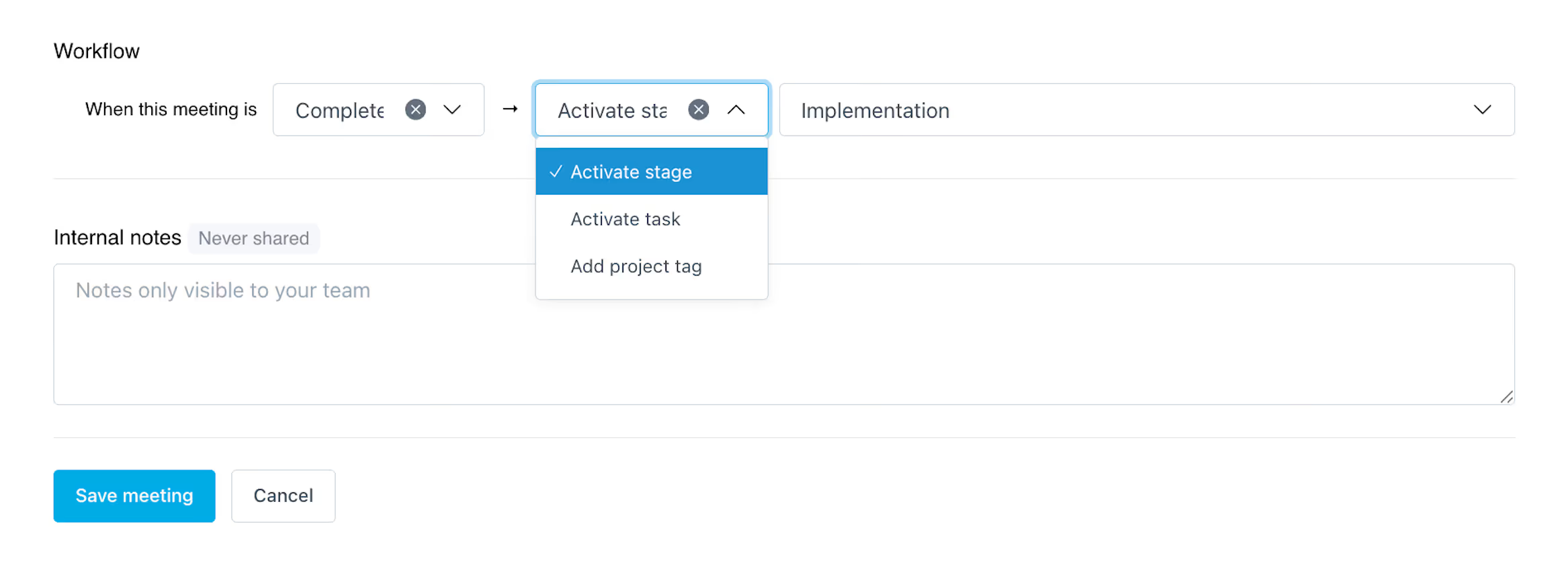
This is especially useful at key transition points. After a kickoff call wraps, LaunchBay can automatically activate your Implementation or Delivery stage, so the next phase of work kicks off without anyone having to remember to flip a switch. Same goes for handoff calls, check-ins, or any meeting that signals a project moving to its next phase. The transition happens on its own.
Why It Matters
The scramble around meetings is one of the most consistent drains on service teams. The prep before, the follow-through after, the client reminders that fall through the cracks, the action items that never make it to a task. It's not that people aren't on top of it. It's that there was never a system built to handle it.
Meetings 2.0 is that system.
For your team
Scheduling is faster with a calendar view and meeting workflows built in. Meetings are more focused with structured agenda types and automatic client reminders on prerequisites. Follow-up is faster with AI summarization, one-click task creation, and stage activation that triggers the moment a call wraps. Less to remember. Less to manually do.
For your clients
They show up to calls knowing what's on the agenda. They leave with a clear summary of what was covered and what they're responsible for. And they can see all of it in their portal without logging into anything new.
What You Can Do With It
Here's what our new and improved LaunchBay Meetings looks like when it's all working together:
Kickoff calls with zero scramble. List prerequisites ahead of time, attach them to tasks, set due dates, and let LaunchBay follow up automatically. Clients arrive with what you need. The call starts on time.
Action items from the call get assigned automatically. Paste your transcript, hit Summarize with AI, and LaunchBay pulls out every action item by attendee and turns them into tasks with one click. Dave sends the export. Jane maps the fields. Sam sends portal access. All assigned, all tracked, before you close the tab.
Meetings end. Work starts. No follow-up required. Set a workflow on any meeting and LaunchBay takes it from there. Kickoff call wraps -- Implementation stage activates. Final delivery meeting done -- Handoff stage kicks in. The next phase of work starts on its own, no message required.
Client-facing meeting transparency. Share the agenda before the call and the summary after. Clients see what was covered, what was decided, and what they're on the hook for. Less back-and-forth, more trust.
Also Worth Knowing: New Zapier Actions for Meetings
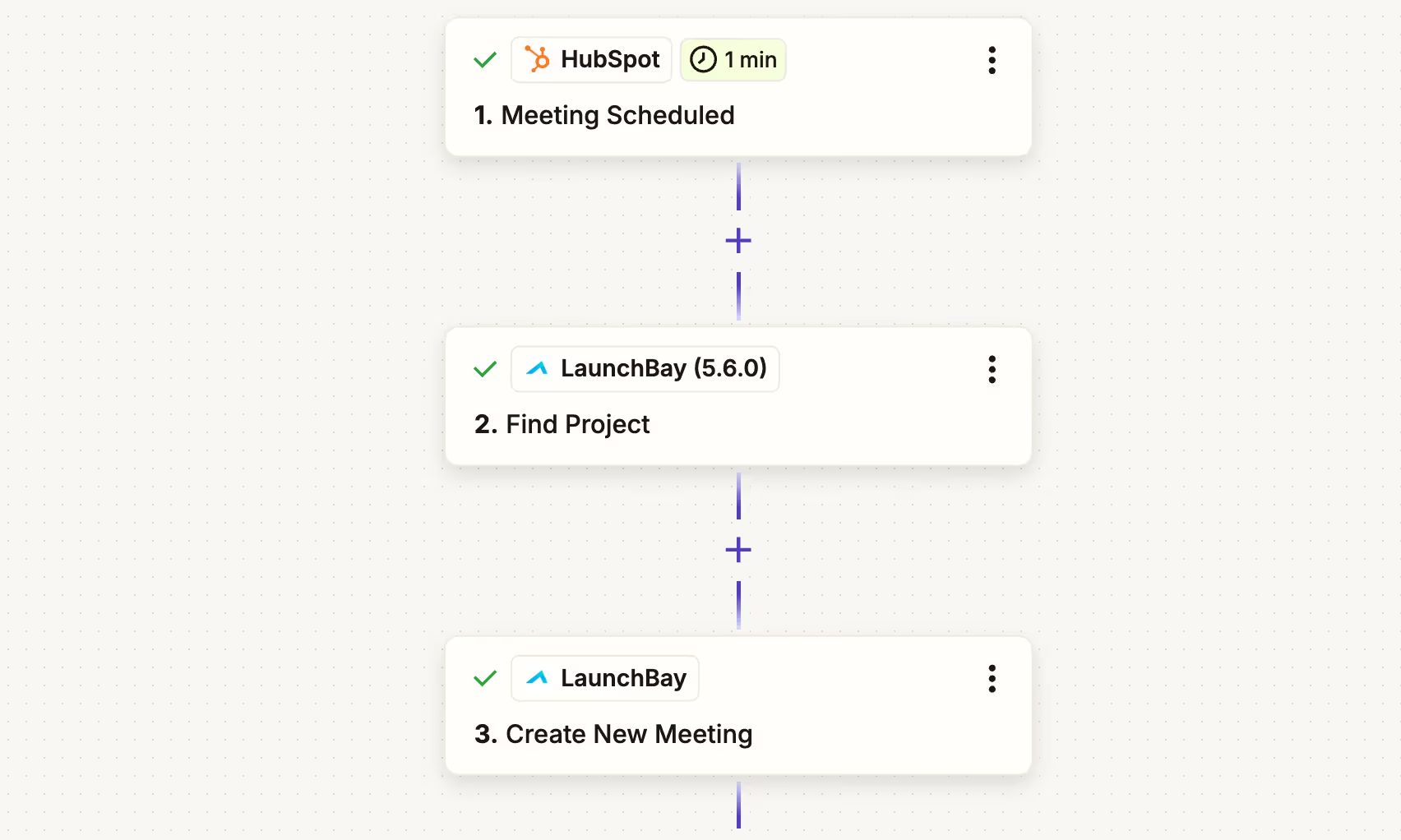
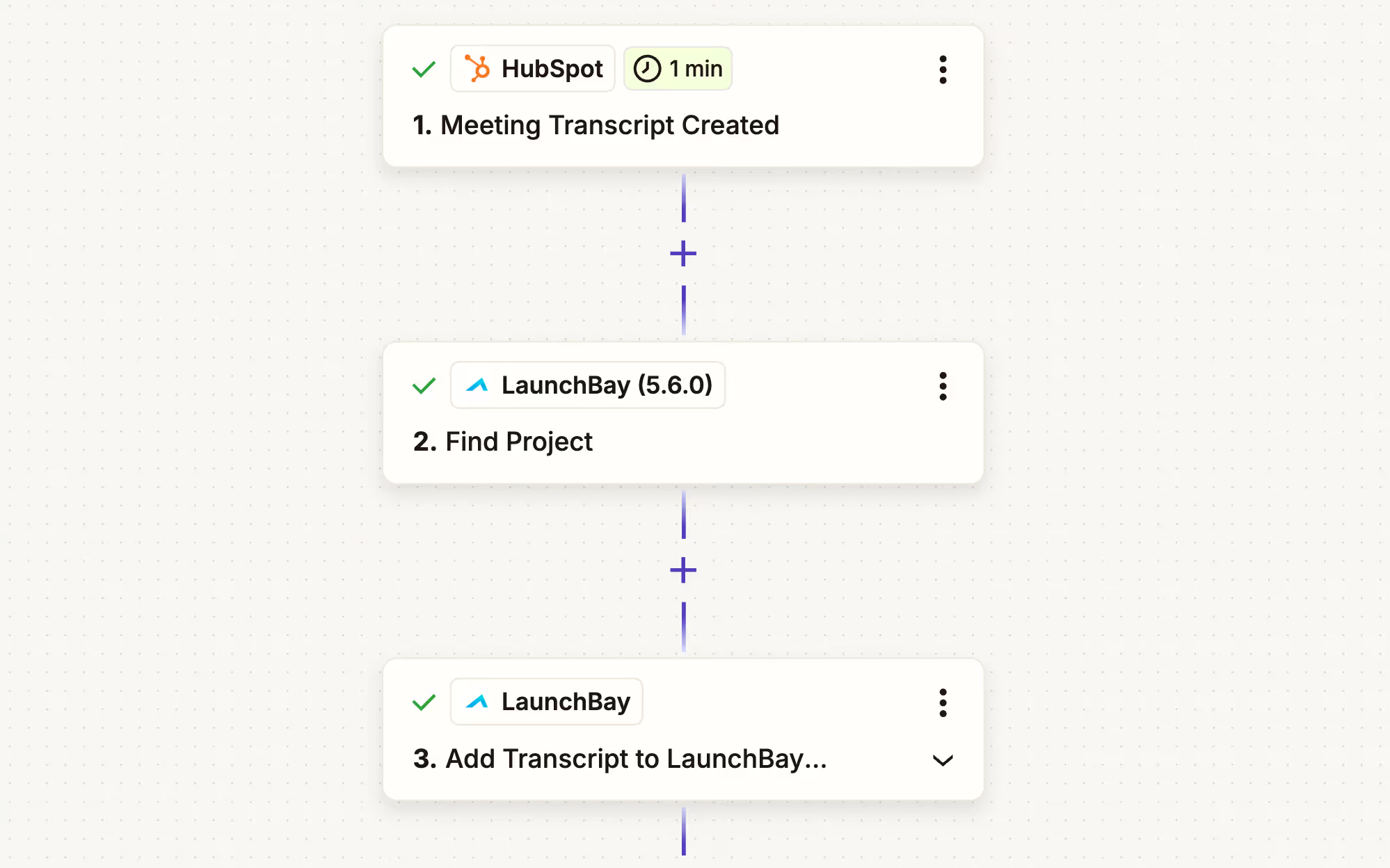
Two new Zapier actions make it easier to keep LaunchBay in sync with the scheduling tools you're already using.
Schedule Meeting creates an upcoming meeting in LaunchBay from any trigger. Use it to automatically log a meeting the moment a Calendly booking comes in or a HubSpot deal stage changes. Learn more.
Save Meeting Recap logs a transcript or summary as a completed meeting record. Pull the summary from your meeting tool and push it straight into LaunchBay without a copy-paste. Learn more.
Get Started
Meetings 2.0 is live and available on Standard and Premium plans. If you're already on LaunchBay, log in and check it out.
Not on LaunchBay yet?
Try LaunchBay free for 14 days, no credit card required.


Get back to the work you're best at.
LaunchBay's AI-powered client portal handles the collecting, reminding, and following up, so your team spends less time chasing clients and more time delivering.
Ready to stop chasing?