.svg)
Aug 5, 2026
LaunchBay Calendly Integration: Everything You Need to Run Customer Meetings in One Place
By
Sam Chlebowski
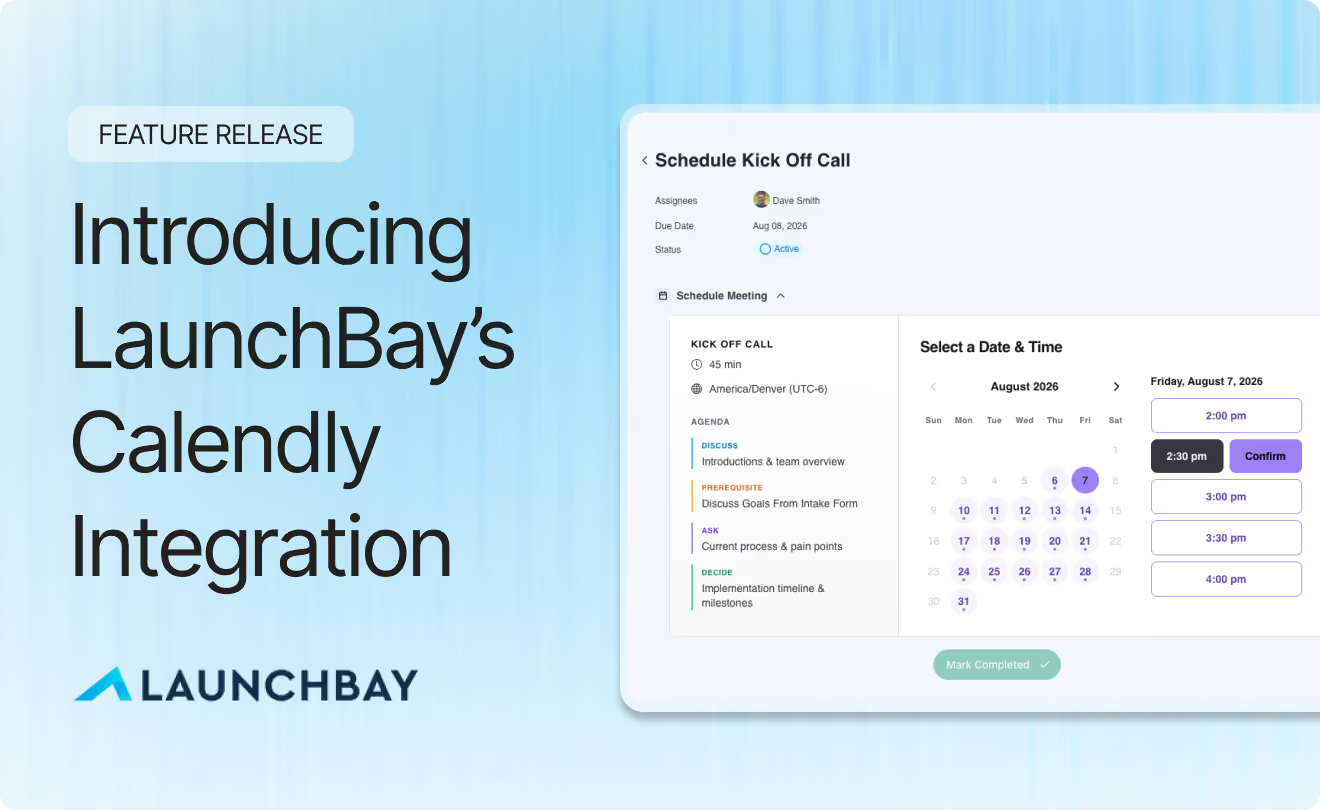
Our most requested integration of the past few weeks has been a direct connection between LaunchBay and other scheduling tools. Today, LaunchBay's native integration with Calendly, the scheduling tool most users told us they use, is here.
Connect your team's Calendly calendars, set up your tasks and meetings, and LaunchBay handles the rest, from booking to follow-up.
Note: The LaunchBay Calendly Integration is available now for all Standard and Premium plan subscribers. If you're on a Standard or Premium plan and don't see it in your account yet, email us at hello@launchbay.com and we'll get you set up.
What Is the LaunchBay Calendly Integration?
The LaunchBay Calendly Integration connects each team member's Calendly account to Request Meeting, a task option available in both active projects and templates. Set it up once, and customers can book real time straight from their portal, with everything staying in sync automatically, in LaunchBay and out.
- One-time integration setup, done from your own profile
- Choose a host and event type per meeting request, and reuse the setup in a template
- Customers book real, conflict-free time straight from their portal
- The task and the meeting update themselves once it's booked
- After the meeting, LaunchBay imports the transcript and suggests follow-up tasks
More on each of those below.
Why We Built It
This integration extends what LaunchBay's Meetings feature already does, helping make sure customer onboarding and implementation calls are productive, handoffs are seamless, all important details get logged, and every new account you close turns into a successful activation.
Before today, getting a customer to book time in their LaunchBay portal meant using the Embed task option: pasting a Calendly link, or whatever scheduling tool you used, into a task as an iframe. It worked, but it lived outside everything else LaunchBay tracked.
Building calendar availability and booking logic from scratch wasn't worth re-solving when a tool already does it well, and plenty of teams on LaunchBay were already using Calendly. So we connected the new Request Meeting task option directly to Calendly's scheduling API, tying it into LaunchBay Meetings. LaunchBay creates the event, so it also knows when it's booked, moved, canceled, or done, without anyone stitching multiple tools together by hand.
How the Calendly Integration Works
Connecting your Calendly account
Each team member connects their own Calendly account from their profile, not a shared team setting.
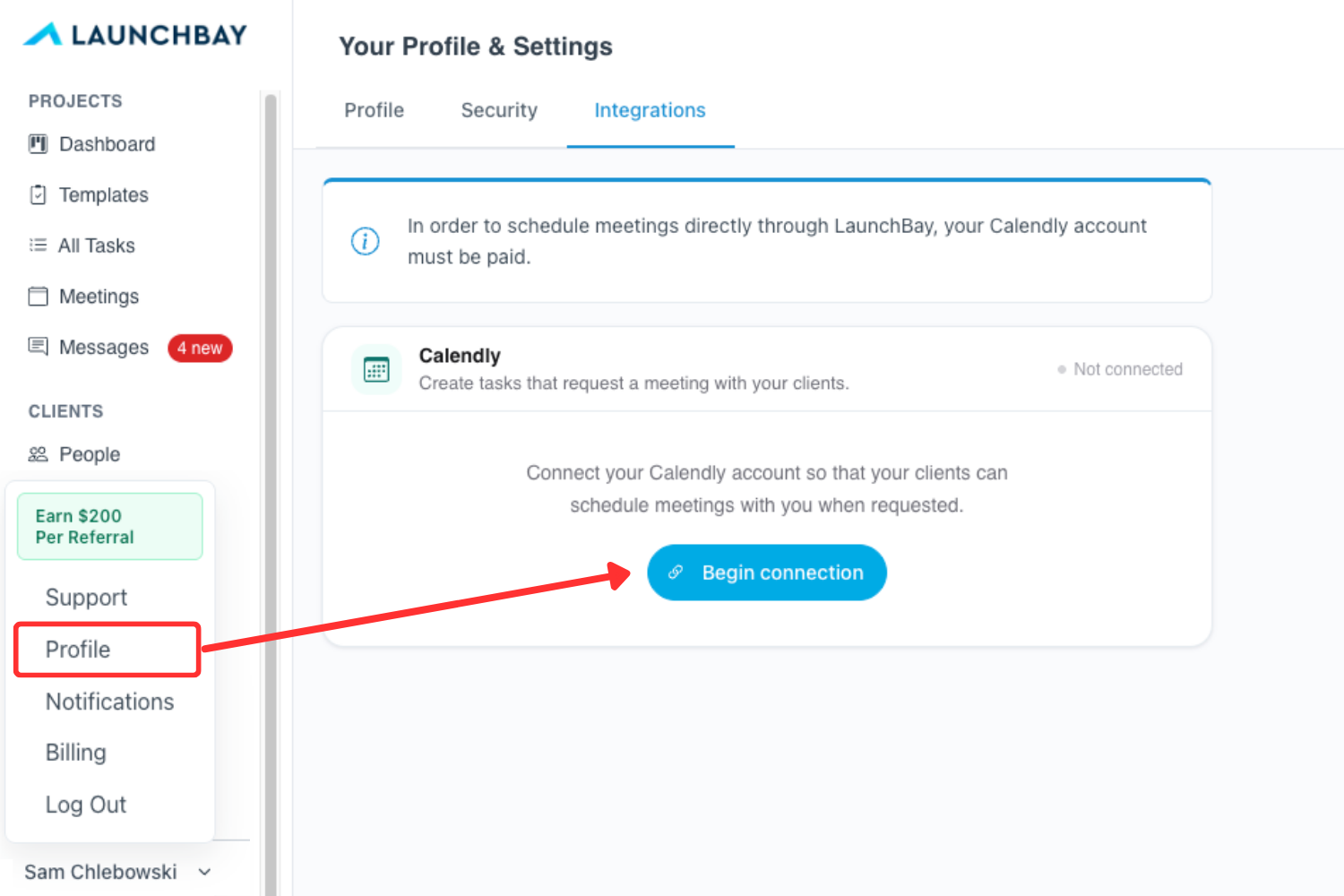
To connect, click your name in the bottom left corner of your account, then select Profile from the dropdown. On the Profile page, open the Integrations tab, where you'll see the Calendly integration box. Click Begin Connection, then Agree to authorize Calendly. The box will update to Connected, and you'll see a list of your Calendly calendar events.
Setting up a meeting request
Once your team's Calendly accounts are connected, start using them in LaunchBay tasks with the new "Request Meeting" option, available on tasks in both active projects and reusable workflow templates. Create or edit a task, click "Request Meeting," then set a meeting title, pick a host, an event type, and any agenda items the meeting needs.
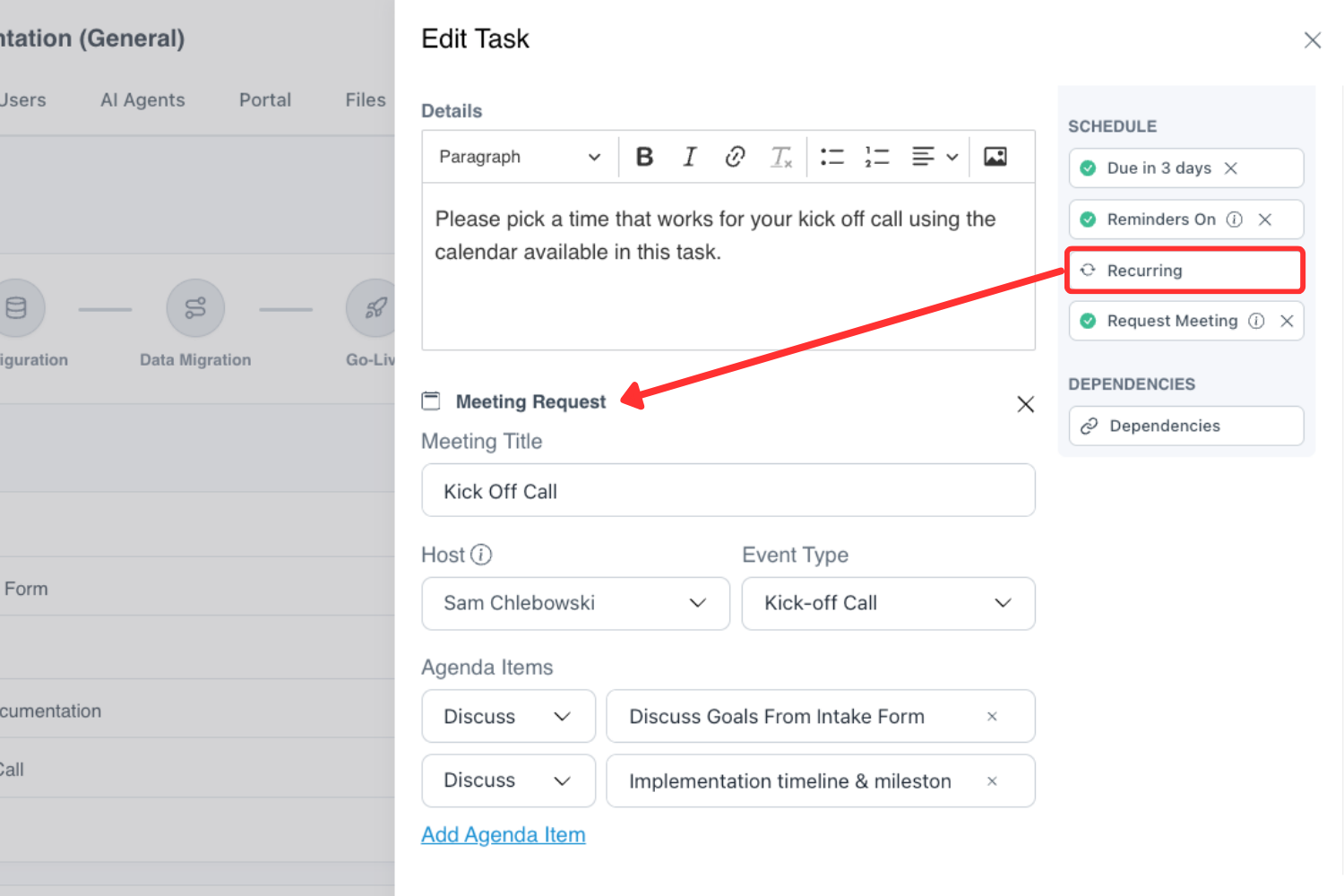
Set up Request Meeting tasks in your templates, and the meetings you typically run come fully mapped out, host, event type, and agenda included, so there's nothing to rebuild from scratch each time you start working with a new customer.
Booking a time
When you send a Request Meeting task, your customer sees a scheduling view built right into the portal, showing your real, up-to-date availability.
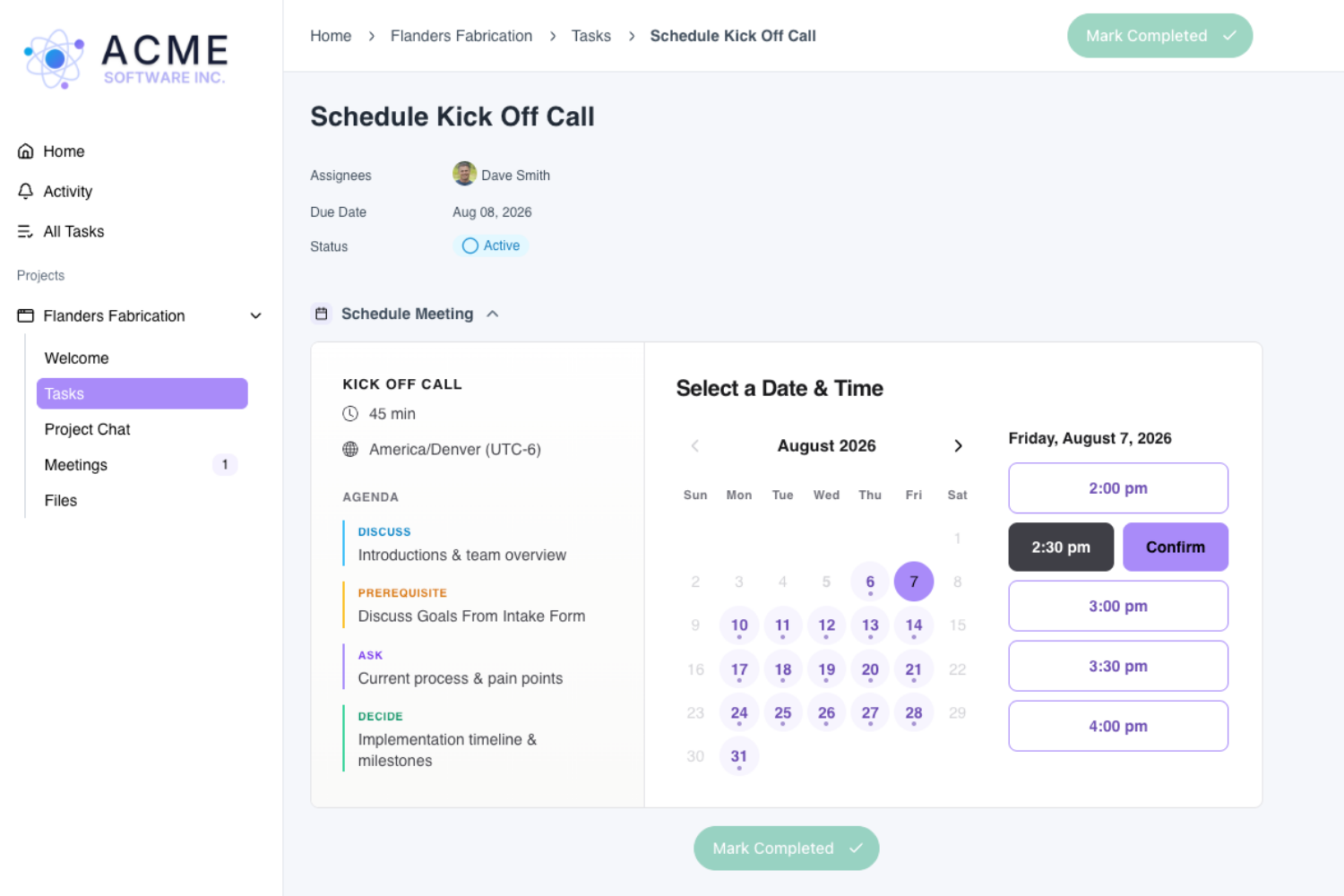
A badge and a banner let them know a meeting is ready to be scheduled, and they see the agenda items, so they know what the meeting is about. Reminders go out automatically, the same way they do for any task, until the meeting is booked.
What happens the moment it's booked
The customer picks a slot, and LaunchBay takes it from there.
The task completes itself, no action needed from the customer. That's the fix for what Embed couldn't do: no more remembering to check a task off after booking somewhere else.
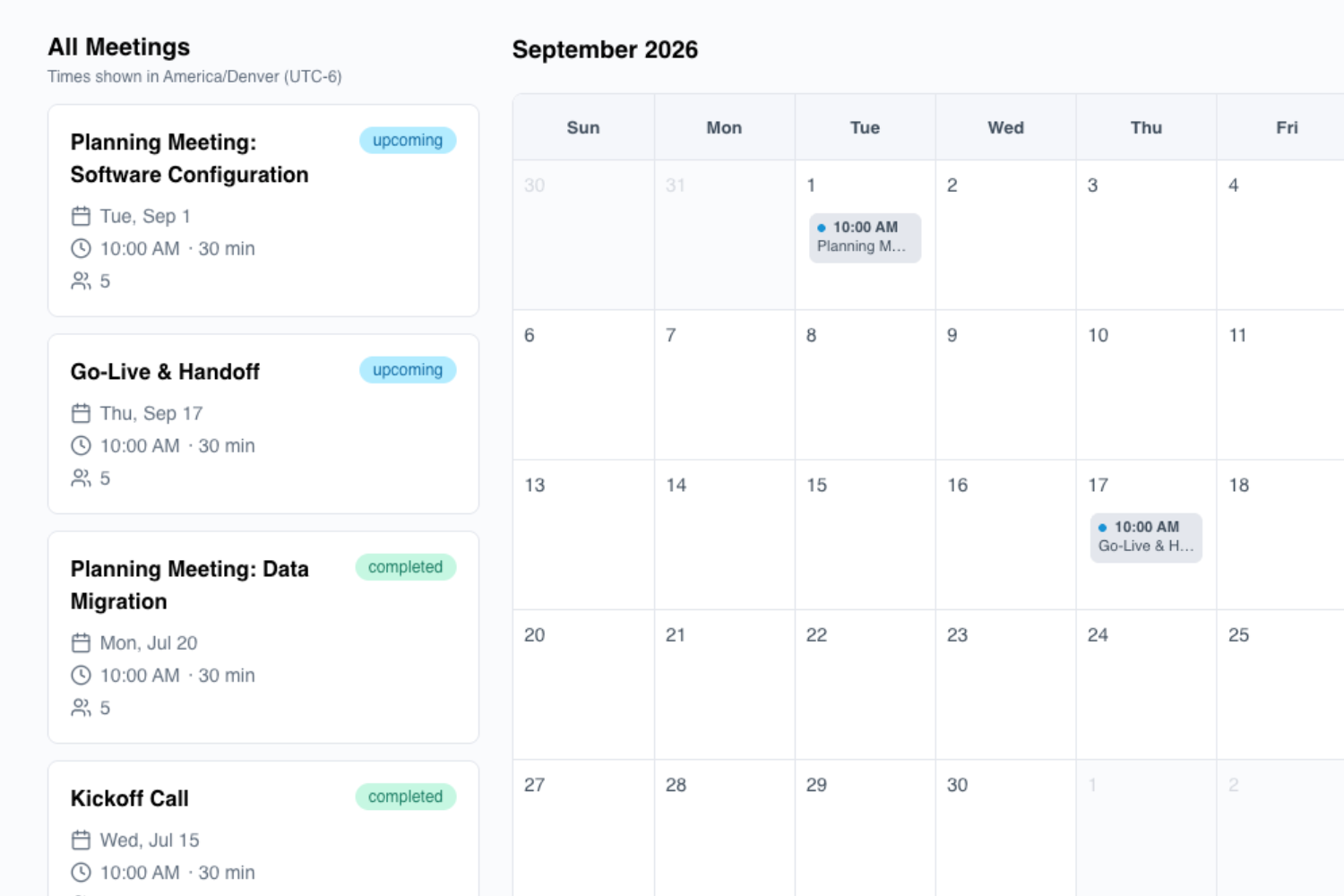
The meeting comes fully formed, call link and attendee details included, using the customer's email to fill those in automatically. It updates everywhere at once, the admin's Meetings tab, the customer's portal, and your own connected calendar, Google or Microsoft included.
It works like any other task, because it is one
A meeting request isn't a special case. It's a task, so everything you've already built around tasks works with it too.
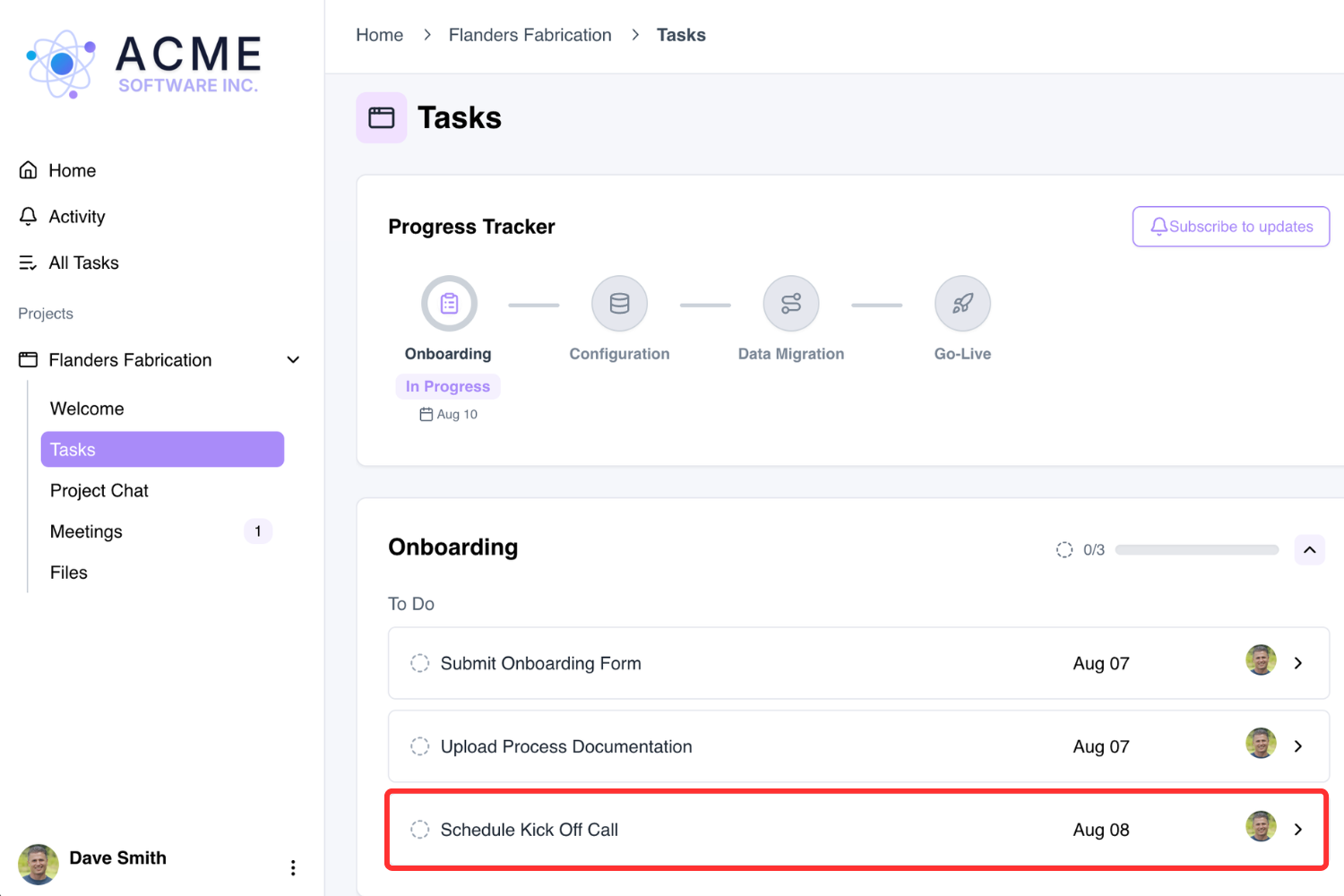
Use Task Dependencies to trigger what comes next once it's booked. Use Automations to react to its status the way you would any task. And if you're running LaunchBay's MCP Connector, a meeting request is just another task it can already see and act on.
Staying in sync automatically
LaunchBay created the meeting, so LaunchBay always knows when it changes.
If your customer makes a change to the meeting, like rescheduling, that change is automatically reflected in the LaunchBay meeting, as well as your connected Google or Microsoft calendar. No second tool to keep updated, and nothing to double-check by hand.
Availability handled automatically
What your customer sees is always current, pulled straight from the host's Calendly.
That includes everything already on the calendar, so nobody books a slot that's already spoken for. Times line up automatically too, whether your customer's three time zones away or someone's traveling with their computer reporting somewhere new.
After the meeting: status, transcripts, and follow-up tasks
Once the meeting ends, LaunchBay doesn't wait around.
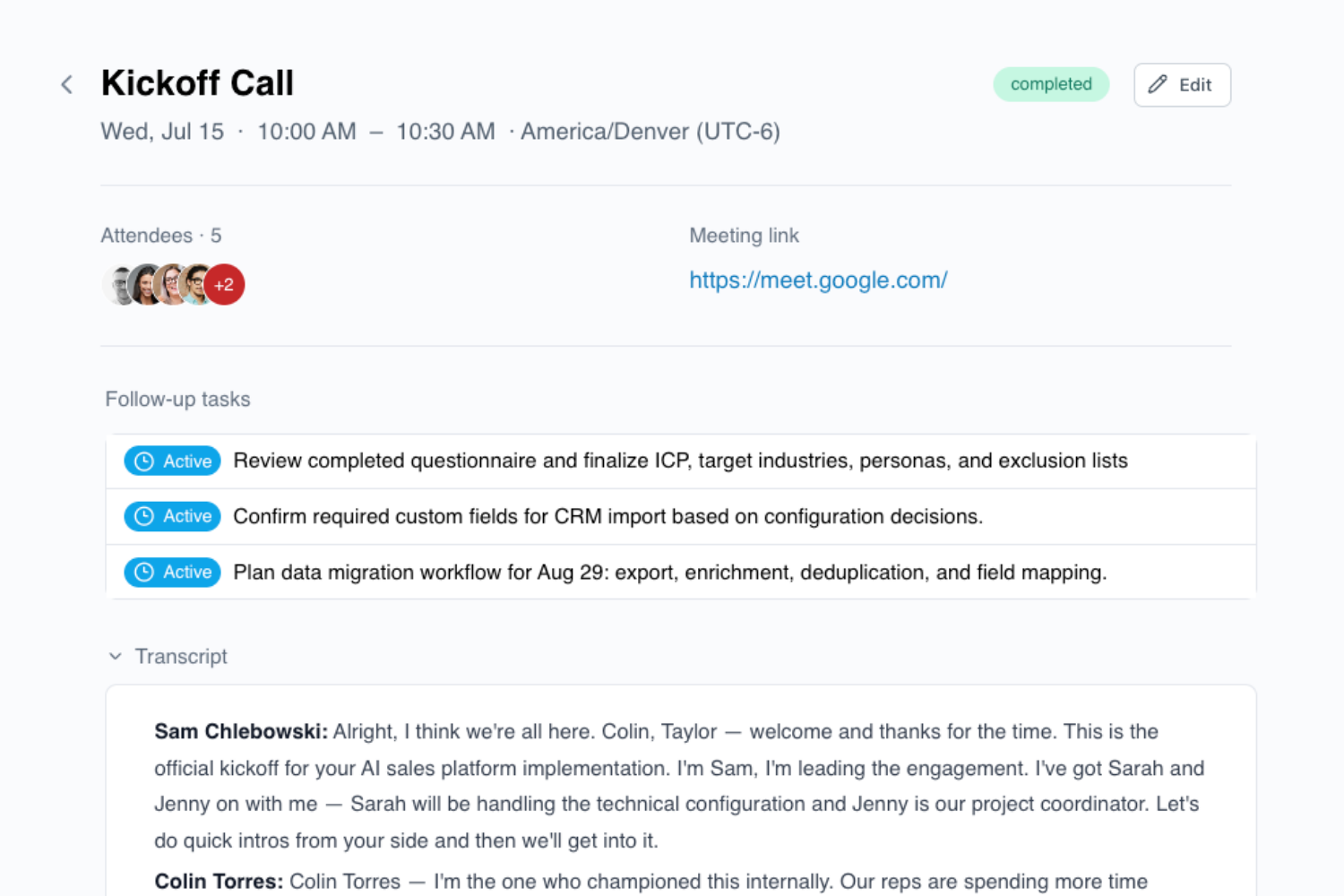
Status flips to complete on its own, everywhere it shows up. Turn on Calendly's built-in note taker and the transcript imports automatically, tied to that exact meeting. From there, LaunchBay writes a summary and suggests follow-up tasks, assignees and due dates included. Review them, and add what you want to the project in one click.
A note on Calendly plans: To get the full functionality out of this integration, including automated meeting transcripts and the booking limits high-growth teams need, sign up for Calendly's Standard plan or above. Get pricing details here.
Get Started
Already using LaunchBay? Connect your Calendly calendars from your profile and build meetings into your existing playbooks for customer onboarding and implementation, so you can bring your A-game every time.
Not on LaunchBay yet?
Start a free trial and begin running more productive meetings that get customers to full activation faster.
You can also see the integration from Calendly's side on their LaunchBay integration page.


Take command of every customer onboarding.
One platform to run, monitor, and manage every customer onboarding, with full visibility into every account.
Ready to stop wondering where things stand?