.svg)
October 13, 2026
Reorder Stages and Tasks from Your AI Assistant
.avif)
Part of our 31 Customer Improvements series, where we ship one feature our customers asked for every day this month.
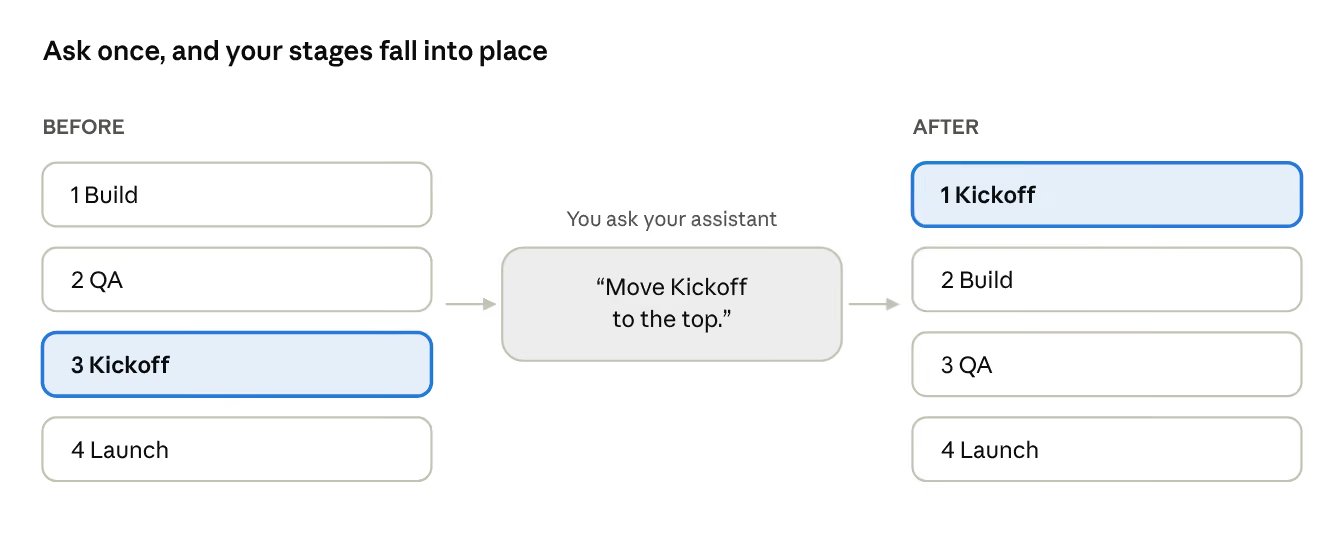
Plans change mid-project. A client wants the contract signed before kickoff, or design review needs to happen before the build. Now your AI assistant can rearrange a project to match. Ask it to put a stage first, reorder the tasks in a stage, or move tasks from one stage to another, and the LaunchBay MCP handles it in one step.
Until now, the assistant could create stages and tasks but couldn’t change their order, so any reshuffling meant dragging things around by hand.
What you can do
- Reorder stages. Change the order your project’s phases appear in, for your team and in your client’s client portal.
- Reorder tasks within a stage. Put the most urgent work at the top.
- Move tasks between stages. Pull tasks into a different stage and place them where they belong, all in the same request.
- Organize unstaged tasks. Tasks that aren’t in any stage can be reordered too.
The result is exactly what you’d get by dragging and dropping in LaunchBay, so stage statuses update the same way they do in the app.
Try asking
- “In the Acme onboarding project, move the Kickoff stage to the top.”
- “Put the contract and payment tasks first in the Setup stage.”
- “Move the three design review tasks into the Review stage, in the order they were created.”
- “The client wants to approve designs before we build. Move the Design Review stage above Build.”
The assistant looks up the project, finds the stages and tasks you mean, and applies the new order. Then it tells you what changed.
Good to know
- Name only what you want to move. Everything you don’t mention keeps its current order, after the items you named. “Put X first” leaves everything else as it was.
- Your client portal stays safe. A client-facing task can’t be moved into an active private stage, so clients never lose sight of work assigned to them. The assistant tells you if a move is blocked.
- Same permissions as the app. The assistant can only reorder projects you’re allowed to edit.
Need to change dates instead of order? Drag tasks in Task Timeline, and dependent tasks move with them.
Get started
If the LaunchBay MCP is already connected to your AI assistant, there’s nothing to set up. Just ask it to reorder a project. If not, follow our MCP setup guide, then try one of the prompts above.
Want the assistant to do something it can’t yet? Ask it to send us feedback. It has a built-in feedback tool, and features like this one come from your requests.