.svg)
October 24, 2026
Polishing the Details: Fixes from Our Client Portal Review
.avif)
Part of our 31 Customer Improvements series, where we ship one feature our customers asked for every day this month.
This release fixes 11 rough edges in the client portal, the form builder, tasks, and the AI builder. We found them by having Claude, Anthropic’s AI assistant, set up and use LaunchBay portals from start to finish, the way a new agency would. In this case, Claude was acting as a customer, so we considered its feedback as valid customer feedback for our month of daily improvements!
None of these were big issues. They were the small moments that make software feel less trustworthy: a message in the wrong color, a button with the wrong label, a field that didn’t land where you dropped it. Here’s what changed.
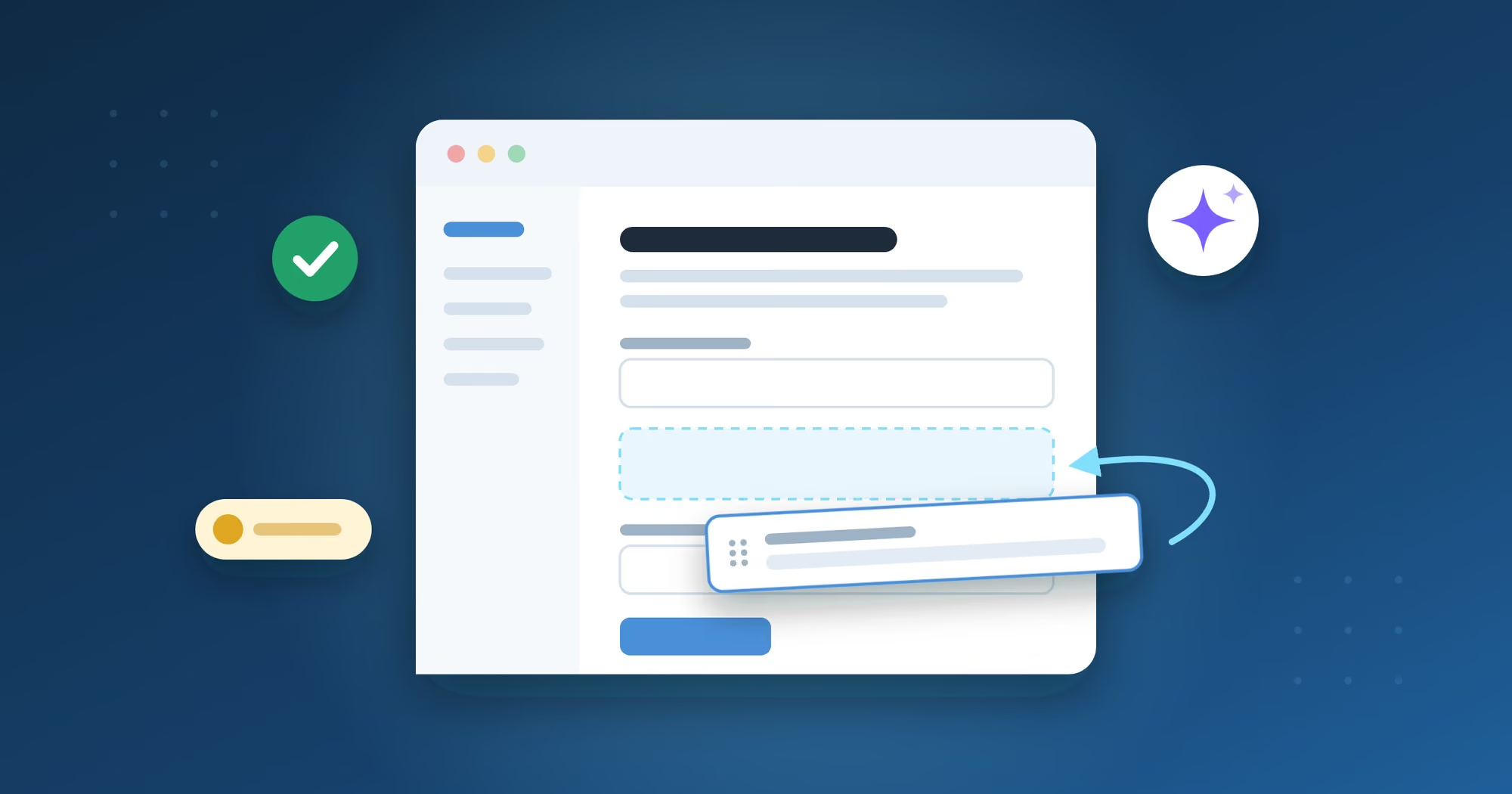
A form builder that does what you tell it
- Drag and drop lands where you drop. In forms with a field group, one move could throw off the next, so a field dragged up could end up below its target. Fields now land exactly where you drop them, however many moves you make.
- Duplicates appear right below the original. A duplicated field used to land one row too low, after the next field. Now the copy sits directly beneath the original, and a duplicated group lands after the whole original group.
- New forms start with a clean headline. New forms used to start with “Enter a headline” as real text, so typing a title could produce something like “Enter a Website Update Requestheadline.” The headline now starts empty, with a gray placeholder that disappears as you type.
- Preview always shows your latest version. Clicking Preview form now saves any unsaved changes first, or waits for a save in progress to finish.
Tasks and meetings
- Save a task without Calendly connected. A task with a meeting request couldn’t be saved until you picked a meeting type, which requires a connected Calendly account. Without one, the task was stuck and the save button kept spinning. Now you can save the task as a draft at any time. You only need a meeting type, and the Calendly connection behind it, when you send the task to your client. If one is missing, a clear message tells you what to do.
- Warnings look like warnings. When you activated several tasks at once and some had no assignee, LaunchBay showed a red error saying “The tasks are now active.” The tasks had been activated, and the message was just a heads-up. It now appears as a yellow warning, and only after the tasks have actually been updated.
AI builder: no more silent failures
The AI builder now tells you when it couldn’t build anything, instead of closing as if it had worked.
- Empty results are reported. Sometimes the AI couldn’t turn a description into usable tasks, but the builder still reported success. The stage builder even said “Your tasks have been generated” with nothing to show. Now you’ll see a message saying the AI couldn’t build tasks from that description, with a suggestion to add more detail and try again.
- Clearer error messages. When the AI builder fails for a reason worth explaining, you now see that reason instead of a generic “Something went wrong.” Unexpected technical errors still show the generic message, so internal details never reach your screen.
- The AI form builder speaks up. If your connection drops while the AI builds a form, you now get an error message instead of a spinner that just stops. It’s the same builder that now handles conditional logic and repeating groups.