.svg)
October 27, 2026
Let Your Whole Team Create Single-Use Contracts (Plus a Cleaner Contracts Window)
.png)
Part of our 31 Customer Improvements series, where we ship one feature our customers asked for every day this month.
Contracts used to be a manager-only job in LaunchBay. If an employee running a project needed a one-off agreement from a client, like a change order mid-way through a client implementation, a quick NDA, or a sign-off on scope, they had to stop and ask an admin or manager to set it up.
Not anymore. Employees can now create, edit, and view their own single-use contracts, right from the task they’re working on. And while we were at it, we rebuilt the Contracts window so adding a contract takes fewer clicks and far less guesswork.
What employees can do now
A single-use contract is built for one task. It isn’t saved to your library and won’t show up anywhere else.
Employees can now:
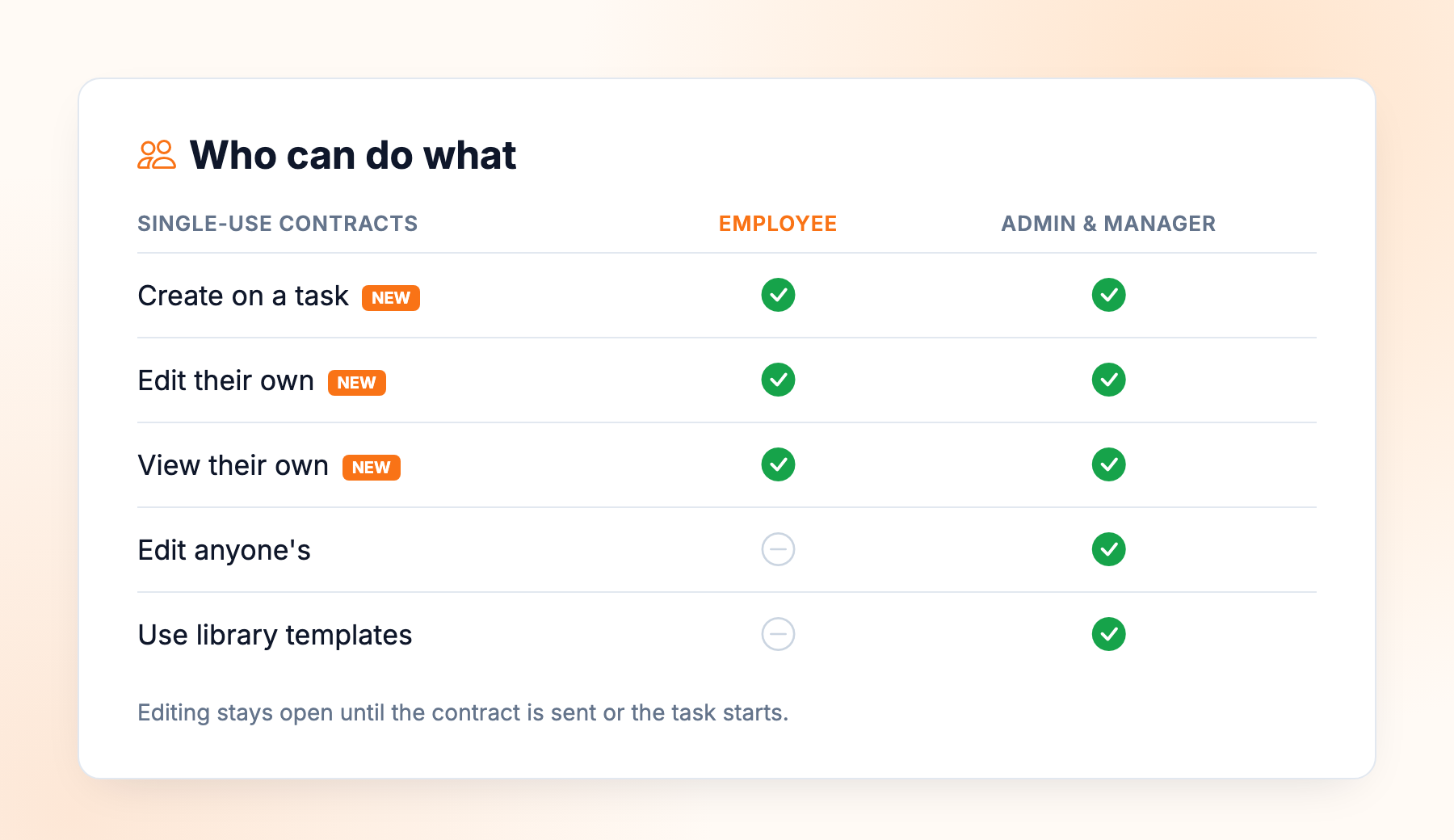
- Create a single-use contract on any task they can work on, by uploading a PDF and placing the fields
- Edit the single-use contracts they created, up until the contract is sent or the task starts
- View the single-use contracts they created, including once they’re out for signature
Your contract library stays in the hands of admins and managers. Employees can’t browse or add reusable contract templates, turn a single-use contract into a template, edit or view contracts someone else created, or delete contracts from the library.
Admins and managers keep full access, including editing any single-use contract an employee made.
A redesigned Contracts window
Open Contracts on a task, and you’ll now see three clear sections instead of one crowded form:
1. Contracts on this task. Every contract attached to the task, labeled either Contract template or Single use, only on this task. Single-use contracts have a pencil button that takes you straight back into the editor.
2. Who fills out each part. One simple dropdown per role on the contract (“Client,” “Company,” and so on). Pick a person for each.
3. Add a contract. Two options for choosing a contract:
- Use a template opens a new searchable template picker.
- Upload a PDF builds a one-off contract just for this task. You can name it right in the editor’s header.
A few smaller fixes along the way:
- Clear reasons when something is locked. If a contract has already been sent or the task has started, the window says so clearly.
- A safety check before removing a single-use contract. Since itisn’t in your library, once it’s gone, you can’t add it back.
- A friendlier empty state. If the project has no clients yet, you’ll see “Add a client to this project first” instead of a wall of disabled fields.

How to add a single-use contract
- Open a task and click Contracts.
- Under Add a contract, choose Upload a PDF.
- Upload your PDF, give it a name, and drag on the signature and form fields.
- Click Use Contract to attach it to the task.
- Assign who fills out each part, then click Done.
Need to change something before it goes out? Click the pencil next to the contract. Editing is available until the contract is sent or the task starts.
Once the last person signs, the task completes on its own, as long as the contract is the only thing it asks for.
FAQ
Do employees need a new permission turned on?
No. Any employee on your team can create single-use contracts on tasks they have access to.
Will an employee’s contract show up in our library?
No. Single-use contracts only ever live on the task they were made for.
Can a manager fix a contract an employee started?
Yes. Admins and managers can edit any single-use contract on the team.
Is anything different for clients?
No. Clients fill out and sign contracts in their client portal exactly as before.