.svg)
October 25, 2026
Recurring tasks, now on your schedule
.png)
Part of our 31 Customer Improvements series, where we ship one feature our customers asked for every day this month.
Recurring tasks in LaunchBay now let you choose the date they start, and they tell you exactly when the next one will appear.
Until now, a recurring task started repeating the moment you turned it on. That works for a weekly check-in you want running today. It works less well for a monthly report that should begin next quarter, or a client review that only makes sense once client onboarding wraps up. You had to remember to come back and switch it on at the right time. And once it was running, there was no quick way to see when the next copy would show up.
Pick when it starts
Recurrence settings now have an optional Start date. Leave it blank, and nothing changes: the task starts repeating as soon as it’s activated. Pick a date, and the first copy waits until the first scheduled day on or after it.
Say you set a task to repeat on the 1st of every month at 9 AM, starting January 15. Activate it today, and nothing happens until February 1 at 9 AM. From there, it repeats monthly as usual.
A few details worth knowing:
- Intervals don’t skip the first run. A task set to repeat every 2 weeks on Monday lands on the first Monday after the start date, not two weeks later. The interval kicks in from the second copy onward.
- The summary says it in plain words. The recurrence description now reads like “On Monday every other week at 9:00 AM starting Jan 15,” so anyone on the team can see the plan at a glance.
- Duplicates keep it. Duplicating a recurring task copies its start date along with the rest of the schedule.
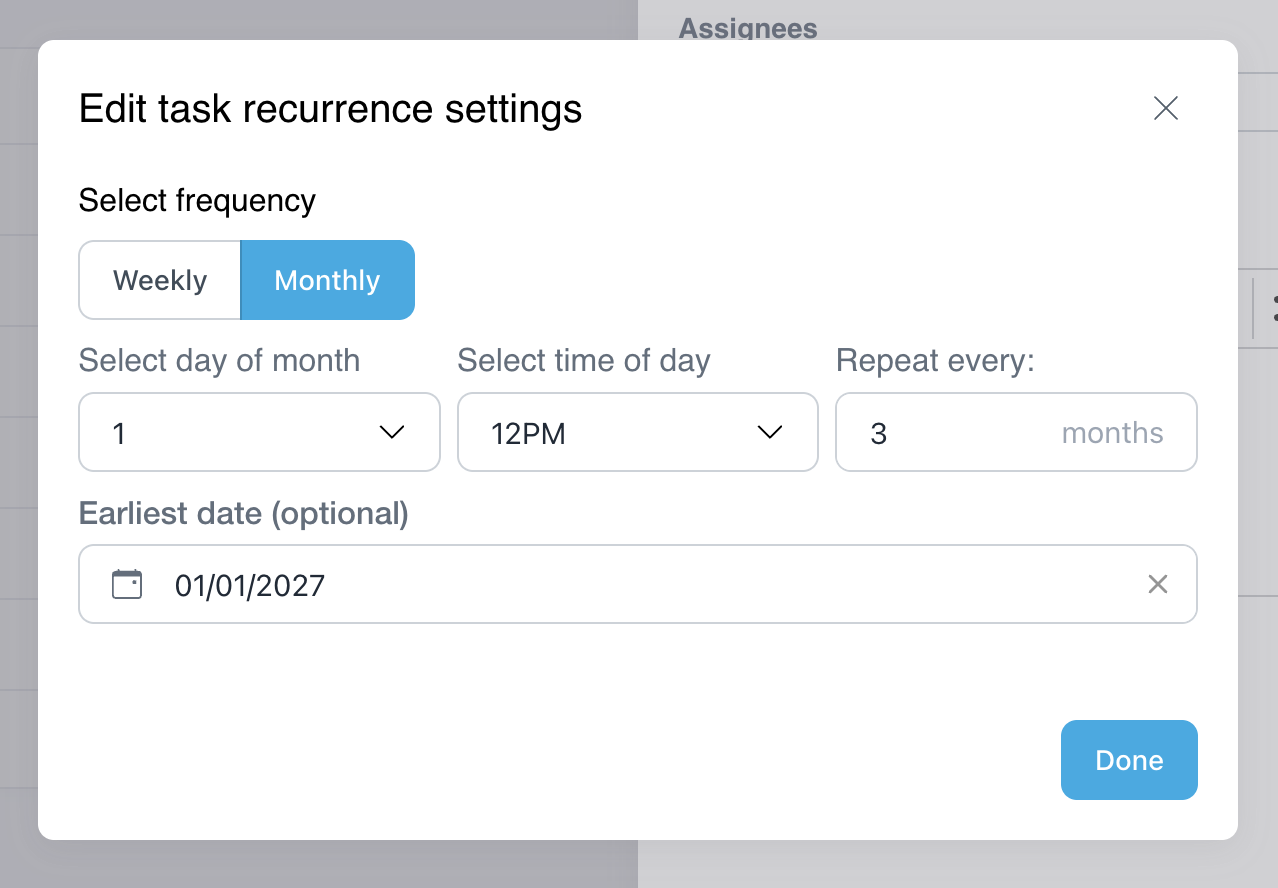
See when the next one will be created
Every active recurring task now shows Next task: with the date and hour the next copy will be created, right beside the task’s action buttons. No more working it out from the schedule or waiting to see whether it shows up.
The time is shown in your own timezone. Hover over it for the full timestamp. If you’ve set a start date, this is where you confirm it worked: before the start date passes, the next task points at the first run after it.
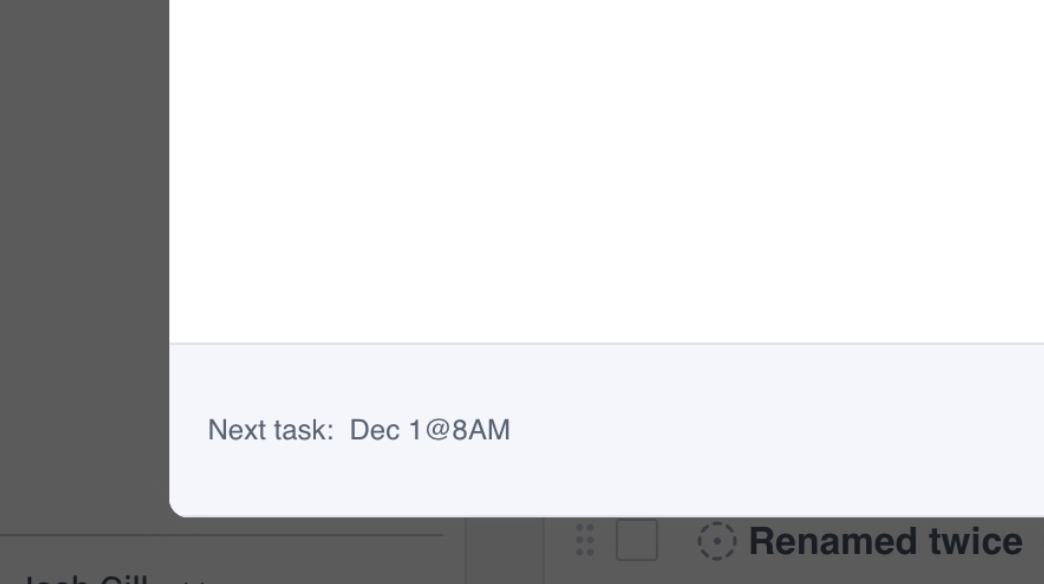
This is for your team only. Clients looking at the same task in their client portal won’t see it.
Try it
- Open a task and turn on recurrence.
- Choose the day, frequency, and time as before.
- Pick a Start date, or leave it blank to start now.
- Save, then check Next task beside the action buttons to confirm when the first copy arrives.
Set it up once, at the right time, and stop setting reminders to switch it on later. Recurring work like monthly reports and quarterly reviews is the backbone of ongoing client management, and now it starts exactly when it should.